

Import and Export
Save or restore OS-level configuration in JSON format, including header bar defaults and site-wide settings.
Import / Export Settings

The Import / Export controls allow administrators to transfer MiningOS configuration between environments. These controls appear at the bottom of the Settings page, below the RBAC Control section. Importing loads a previously exported configuration file; exporting saves the current configuration to a downloadable file.
Main Controls
| Control | Type | Description |
|---|---|---|
| Import JSON | Button (outlined) | Opens the Import OS Settings modal dialog for uploading a configuration file |
| Export JSON | Button (primary) | Immediately downloads the current MiningOS configuration as a JSON file to the user's local machine |
Both actions require the corresponding permission — ImportSettings for import and ExportSettings for export. Users without these permissions will see the buttons disabled or hidden. See Effective Permissions for details.
Export JSON does not open a dialog — it triggers a direct file download with no further confirmation.
Export Behavior
The export produces a single .json file containing the full MiningOS site configuration.
The default filename pattern for exported configuration files is not confirmed in the current designs. Verify with engineering whether a convention such as mos-config-YYYY-MM-DD.json is used.
Exported configuration files may contain sensitive operational parameters. Store and transfer them securely.
Import OS Settings
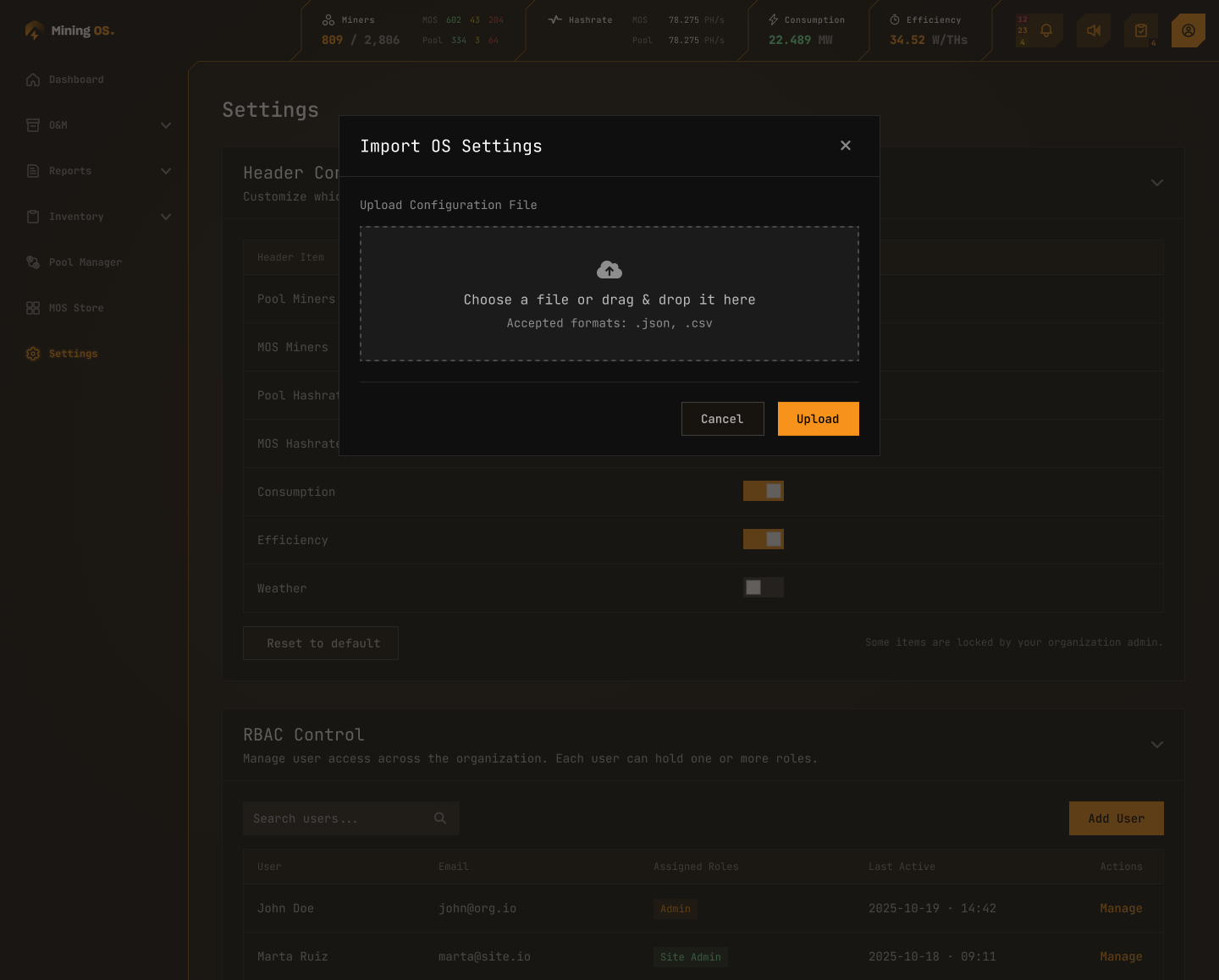
This dialog opens when clicking Import JSON in the Import / Export controls. The dialog title reads "Import OS Settings" with a close (×) button in the top-right corner.
Upload Configuration File
The dialog contains a section labeled "Upload Configuration File" with a drag-and-drop upload zone:
- A central drop zone displays an upload icon and the instructional text "Choose a file or drag & drop it here".
- Clicking the drop zone opens the OS file picker for manual file selection.
- Below the instructional text, the accepted formats are listed: "Accepted formats: .json, .csv".
Only one file can be imported at a time. Dropping multiple files will either reject the action or select only the first file.
Supported Formats
| Format | Extension | Description |
|---|---|---|
| JSON | .json | Standard MiningOS configuration export format |
| CSV | .csv | Comma-separated values configuration format |
Validation and Feedback
After a file is dropped or selected:
- The dialog validates the file format and structure before applying.
- If the file is invalid or malformed, an inline error message appears (e.g., "Invalid configuration file. Please upload a valid MiningOS configuration export.").
The exact validation behavior and any confirmation summary step before applying are not fully detailed in the current designs. Verify with engineering whether a preview or diff is shown before the import is committed.
Action Buttons
- Cancel — Closes the dialog without importing. No changes are applied.
- Upload (primary button) — Applies the uploaded configuration file. The Settings page refreshes to reflect the imported values.
Importing a configuration file overwrites the current MiningOS settings. This action may be difficult to reverse if no prior export was saved. Always export the current configuration before importing a new one.
Cross-References
- Import and Export buttons may be governed by the ImportSettings and ExportSettings permissions. See Effective Permissions for details.
- The Header Bar metrics may change after importing a new configuration. See Header Bar.
- User and role assignments are managed separately and are not affected by configuration import/export. See RBAC Control.