

Header
Configure the Settings page header bar and control which metrics are visible across all MiningOS pages.
Header Bar
The Header Bar is the topmost element of the Settings page, always visible regardless of scroll position. It serves as a real-time dashboard summary showing key operational metrics for the mining site. The Header Bar has two layout variants controlled by the Header Controls toggles.


Layout Variant A: Collapsed (Default)
In its default state, the Header Bar uses a compact, single-row presentation:
- Metrics are displayed inline as a horizontal strip.
- Each metric appears as a label–value pair separated by vertical dividers.
- This is the default state when all Header Controls toggles are off or the bar is minimized.
Layout Variant B: Expanded
When one or more Header Controls toggles are enabled, the Header Bar switches to an expanded, multi-row presentation:
- The Header Bar grows vertically to accommodate additional detail or grouped metric cards.
- Metrics may be organized into logical groups (e.g., power metrics together, hash rate metrics together).
- This state is activated when one or more Header Controls toggles are enabled.
Metrics
The following metrics are displayed in the Header Bar:
| Metric | Unit | Description |
|---|---|---|
| Total Hashrate | TH/s | Aggregate hash rate across all active miners on the site |
| Active Miners | Count | Number of miners currently online and hashing |
| Inactive Miners | Count | Number of miners that are offline or not reporting |
| Power Consumption | kW | Total electrical power draw across all active miners |
| Efficiency | J/TH | Energy efficiency ratio — joules consumed per terahash |
Metric values update in real time.
The specific metrics visible in the Header Bar depend on which toggles are enabled in Header Controls. When all toggles are off, the bar shows a minimal default set.
The Header Bar's content and layout are controlled by the toggles in Header Controls. For import/export actions that affect site-wide configuration (including Header Bar defaults), see Import OS Settings and Export Behavior.
Header Controls
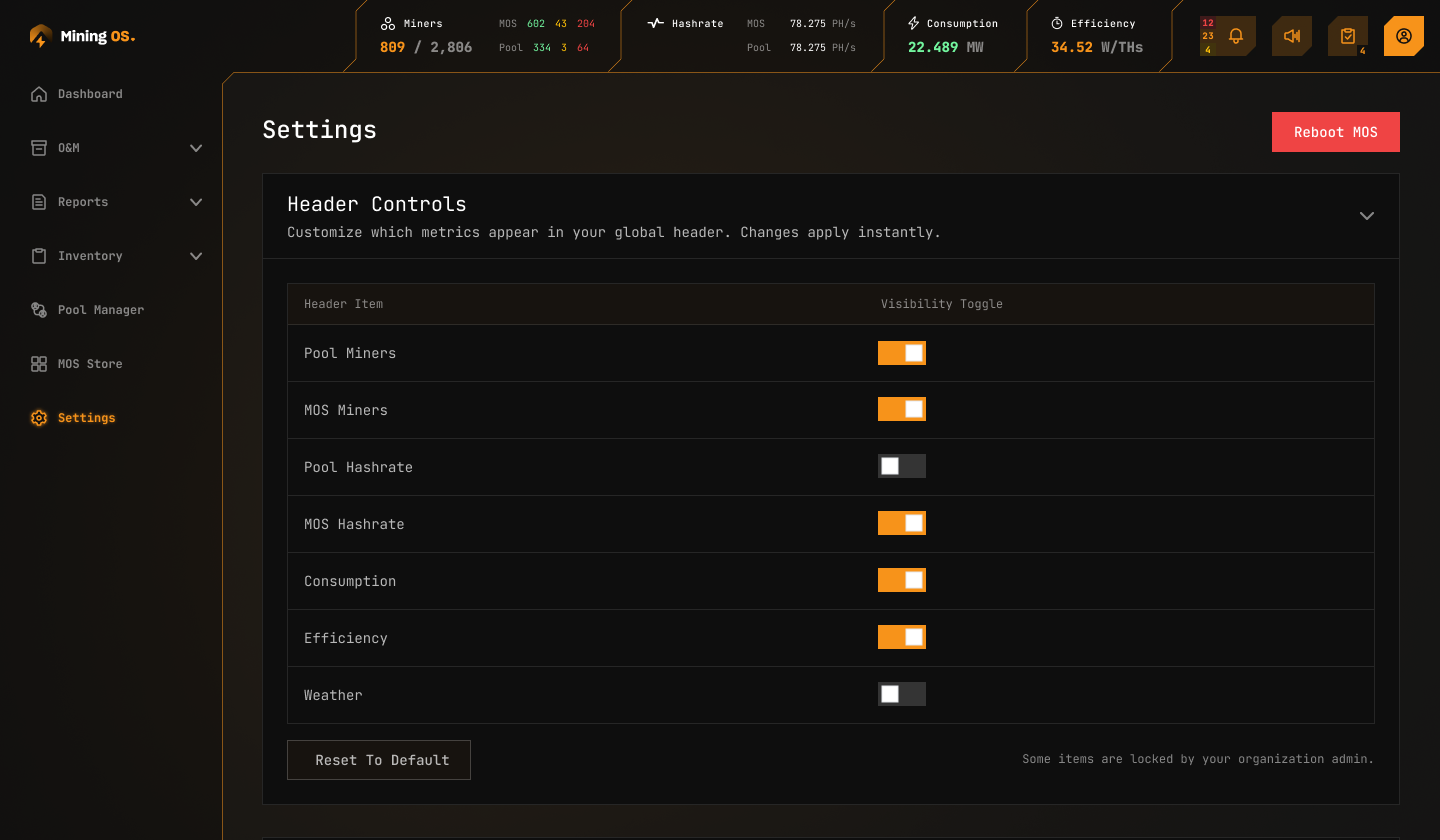
Customize which entries appear in your global header. Changes apply instantly. This panel controls the visibility of header bar metrics across all MiningOS pages — toggling an item on or off immediately updates the Header Bar without requiring a save action.
Toggle Items
| Control | Default State | Description |
|---|---|---|
| Pool Miners | On | Shows/hides the Pool Miners count in the header bar |
| MOS Miners | On | Shows/hides the MOS Miners count in the header bar |
| Pool Hashrate | On | Shows/hides the Pool Hashrate value in the header bar |
| MOS Hashrate | On | Shows/hides the MOS Hashrate value in the header bar |
| Consumption | On | Shows/hides total power consumption (MW) in the header bar |
| Efficiency | On | Shows/hides the energy efficiency ratio (W/THs) in the header bar |
| Weather | Off | Shows/hides weather information in the header bar |
Each toggle controls whether its corresponding metric is visible in the header bar. When a toggle is On, the metric appears; when Off, it is hidden. All changes apply instantly — no save button is required.
Reset to Default
The Reset to Default button restores all 7 toggles to their factory default state (all On except Weather, which defaults to Off).
Reset to Default resets all toggles at once. Individual toggles cannot be selectively restored — if you need to undo a single change, adjust that toggle manually.
Admin-Lock Behavior
Some items are locked by your organization admin — Certain toggles may appear greyed out and non-interactive. These are locked at the organization level by an administrator and cannot be changed by non-admin users.
When a toggle is admin-locked:
- It appears greyed out and does not respond to clicks.
- The lock state is set outside this panel by an organization administrator.
- Only an administrator can unlock the toggle.
The metrics controlled by these toggles are described in Header Bar. For import/export actions that affect site-wide configuration (including Header Controls defaults), see Import OS Settings and Export Behavior.