

Pool Manager Module
Configure mining pools, assign pools to miners, and visualize miner distribution across sites.
The Pool Manager Module is a core component of MiningOS that enables operators to configure mining pools, assign pools to miners, and visualize miner distribution across sites. This module provides centralized control over which mining pools receive hashrate from your fleet, with support for primary and failover endpoints to maximize uptime and revenue.
For the technical implementation of pool workers, see Architecture — Worker Types. For pool worker installation, see Installation — Ocean Mining Pool and Installation — F2Pool.
Quick Navigation
| Section | Description |
|---|---|
| Pool Manager Dashboard | Summary statistics and navigation |
| Pool Endpoints | Configure pool connections |
| Miner Explorer | Search and assign pools to miners |
| Sites Overview | Visual rack layout for bulk assignment |
| Alerts Integration | Pool-related alert handling |
| Operational Best Practices | Recommended procedures |
Pool Manager Dashboard
The Pool Manager Dashboard serves as the central hub for pool management operations, providing quick access to statistics, navigation, and recent alerts.
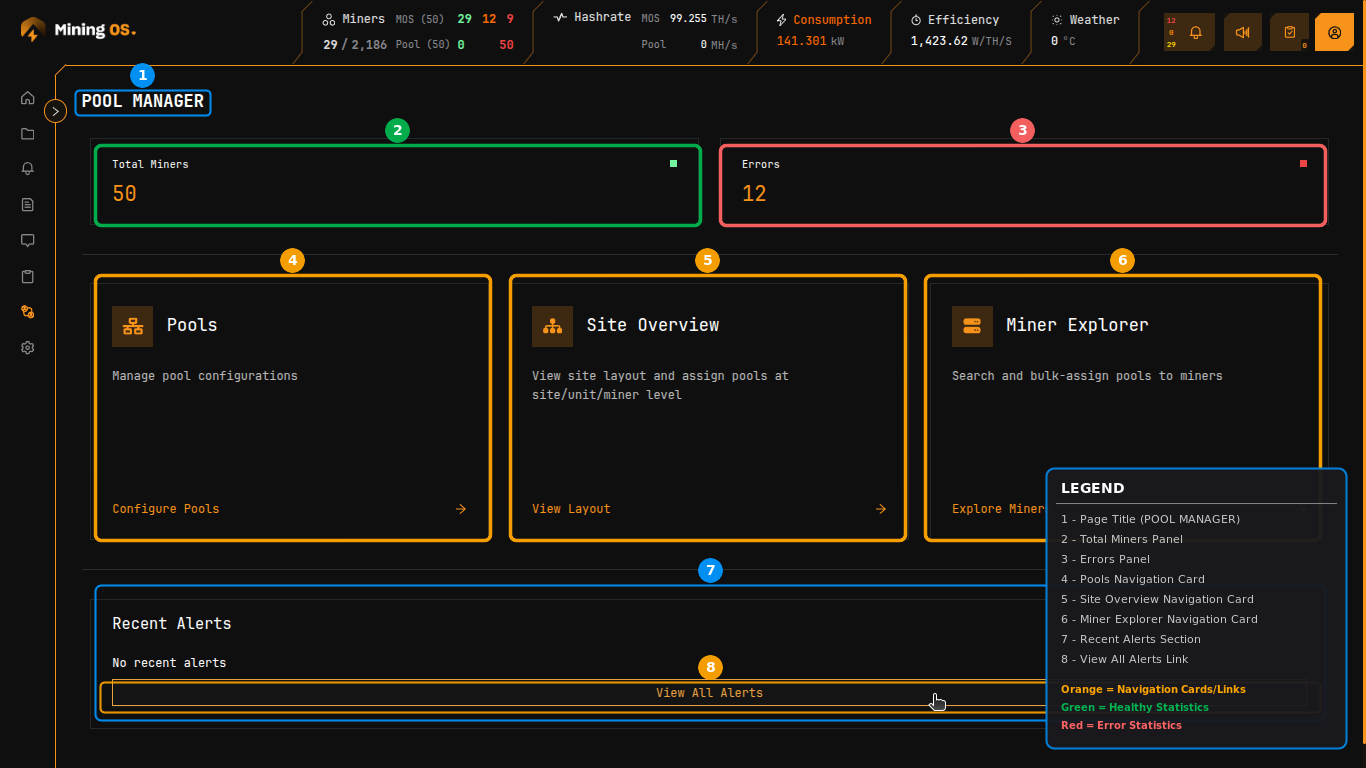 Figure 1: Pool Manager Dashboard showing summary statistics and navigation cards
Summary Statistics
The top section displays two key metrics panels:
| Panel | Description |
|---|---|
| Total Miners | Count of all miners registered for pool management at the current site |
| Errors | Count of miners experiencing errors requiring attention |
The statistics use color coding for rapid assessment: green indicators suggest healthy operation, while red numbers indicate issues requiring investigation. For details on miner status indicators, see the Header documentation.
Navigation Cards
Three navigation cards provide quick access to Pool Manager sub-pages:
| Card | Function | Link Text |
|---|---|---|
| Pools | Configure pool endpoints and failover settings | Configure Pools |
| Site Overview | Visual rack layout with pool assignment at site/unit/miner level | View Layout |
| Miner Explorer | Search and bulk-assign pools to individual miners | Explore Miners |
Recent Alerts Section
The bottom panel displays recent pool-related alerts with a "View All Alerts" link to the full Alerts page. When no alerts exist, displays "No recent alerts".
Navigation Sidebar
Expanding the sidebar reveals the Pool Manager section with its sub-pages. For general sidebar navigation, see the Inventory Dashboard.
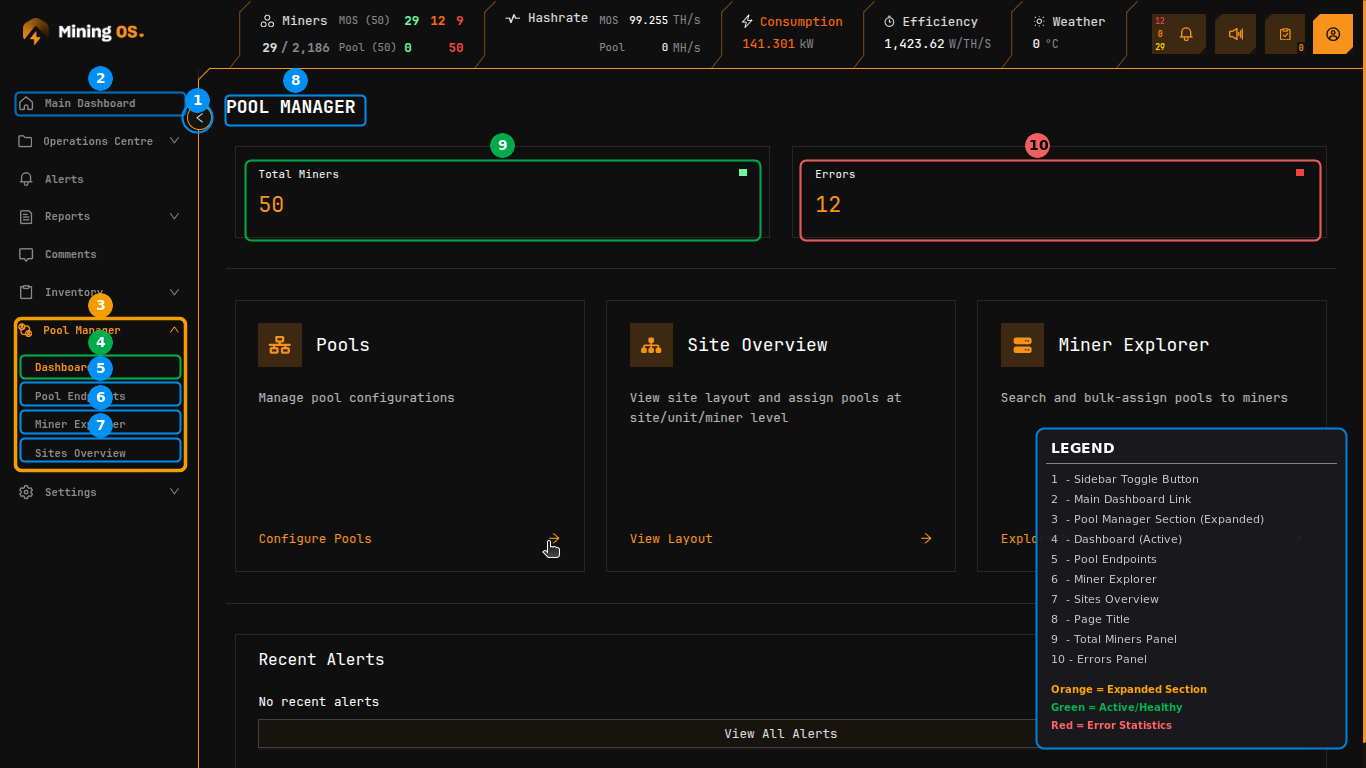 Figure 2: Pool Manager section expanded in navigation sidebar
| Sub-page | Purpose |
|---|---|
| Dashboard | Summary statistics and navigation hub |
| Pool Endpoints | Configure pool connections and failover priorities |
| Miner Explorer | Search and assign pools to individual miners |
| Sites Overview | Visual rack layout for bulk pool assignment |
Pool Endpoints
The Pool Endpoints sub-page manages mining pool configurations, including primary endpoints and failover pools for redundancy.
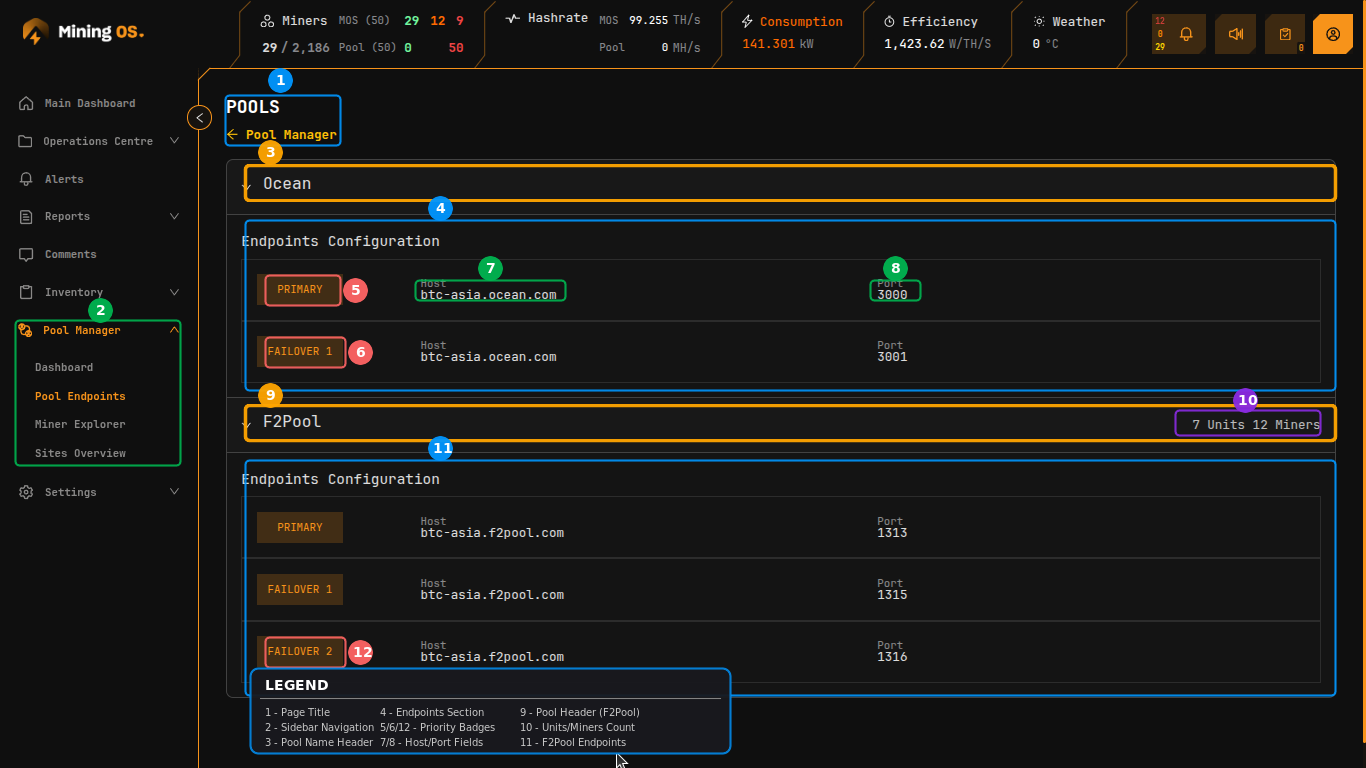 Figure 3: Pool Endpoints showing Ocean and F2Pool configurations
Pool Configuration Structure
Each pool configuration displays as an expandable accordion section containing:
| Element | Description |
|---|---|
| Pool Name | Pool identifier (e.g., Ocean, F2Pool) |
| Units/Miners Count | Number of units and miners assigned to this pool |
| Endpoints Configuration | List of primary and failover endpoints |
Endpoint Hierarchy
Endpoints are organized by priority level:
| Badge | Priority | Purpose |
|---|---|---|
| PRIMARY | Highest | Main mining endpoint; receives all hashrate when available |
| FAILOVER 1 | Secondary | First backup when primary is unreachable |
| FAILOVER 2 | Tertiary | Second backup for additional redundancy |
Endpoint Details
Each endpoint row displays connection information:
| Field | Description | Example |
|---|---|---|
| Host | Pool server hostname | btc-asia.ocean.com |
| Port | Connection port number | 3000, 3001, 1313 |
Supported Mining Pools
MiningOS integrates with the following mining pools through dedicated workers. For worker architecture details, see Architecture — External API Workers.
| Pool | Website | Worker Repository | Installation Guide |
|---|---|---|---|
| Ocean | ocean.xyz | miningos-wrk-minerpool-ocean | Ocean Setup |
| F2Pool | f2pool.com | miningos-wrk-minerpool-f2pool | F2Pool Setup |
Ocean Pool Configuration Example:
- Primary: btc-asia.ocean.com:3000
- Failover 1: btc-asia.ocean.com:3001
F2Pool Configuration Example:
- Primary: btc-asia.f2pool.com:1313
- Failover 1: btc-asia.f2pool.com:1315
- Failover 2: btc-asia.f2pool.com:1316
For adding support for additional mining pools, see Adding New Worker Type.
Miner Explorer
The Miner Explorer sub-page provides search, filtering, and bulk pool assignment capabilities for individual mining units. For general device exploration across all device types, see the main Explorer.
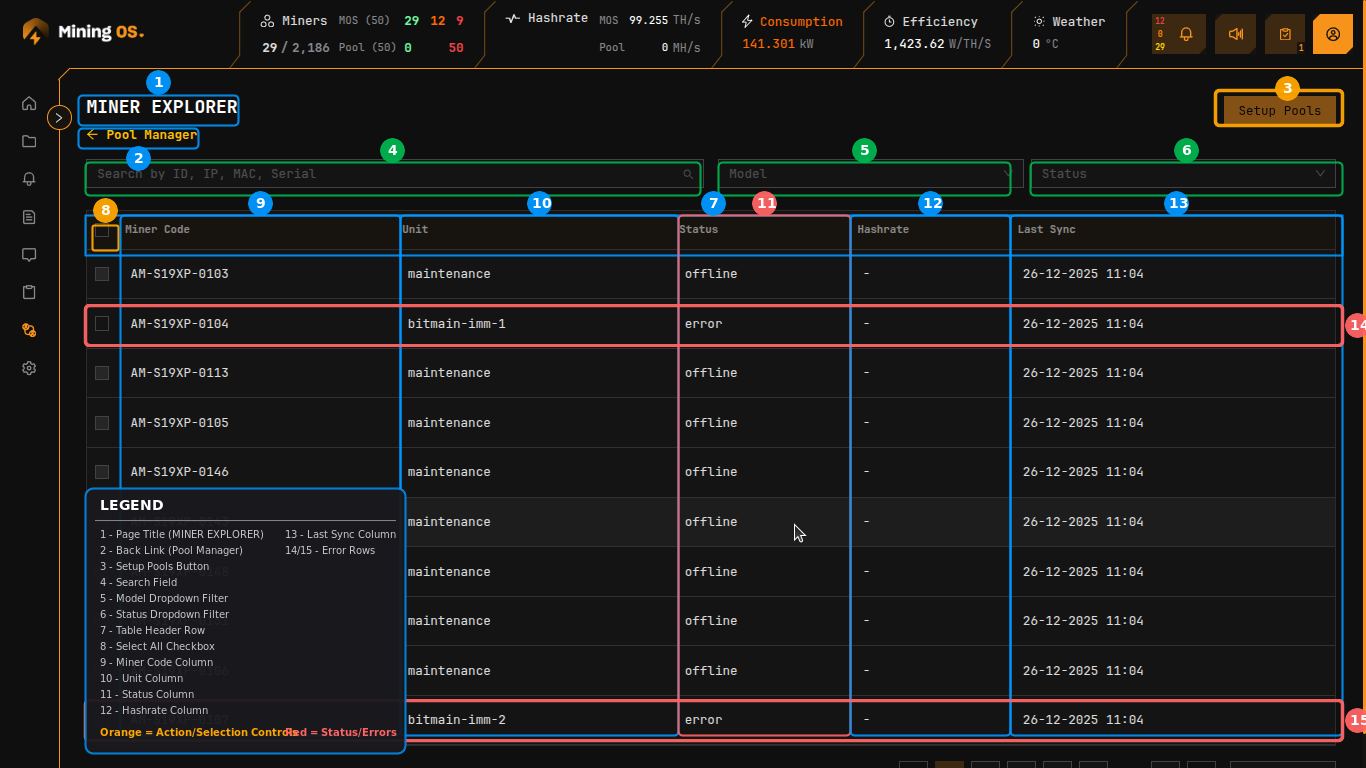 Figure 4: Miner Explorer with filtering controls and action buttons
Page Header
The page header contains navigation and primary controls:
| Element | Function |
|---|---|
| Back Link | Returns to Pool Manager Dashboard ("← Pool Manager") |
| Page Title | "MINER EXPLORER" confirms current context |
| Setup Pools Button | Opens pool assignment dialog for selected miners |
Search and Filter Bar
The filter bar enables refined miner selection:
| Control | Function |
|---|---|
| Search Field | Type-ahead filtering by ID, IP, MAC, or Serial |
| Model Dropdown | Filter by miner model type |
| Status Dropdown | Filter by operational status |
For supported miner models, see Supported Devices — Miners.
Status Filter Options
The Status dropdown provides filtering by miner operational state:
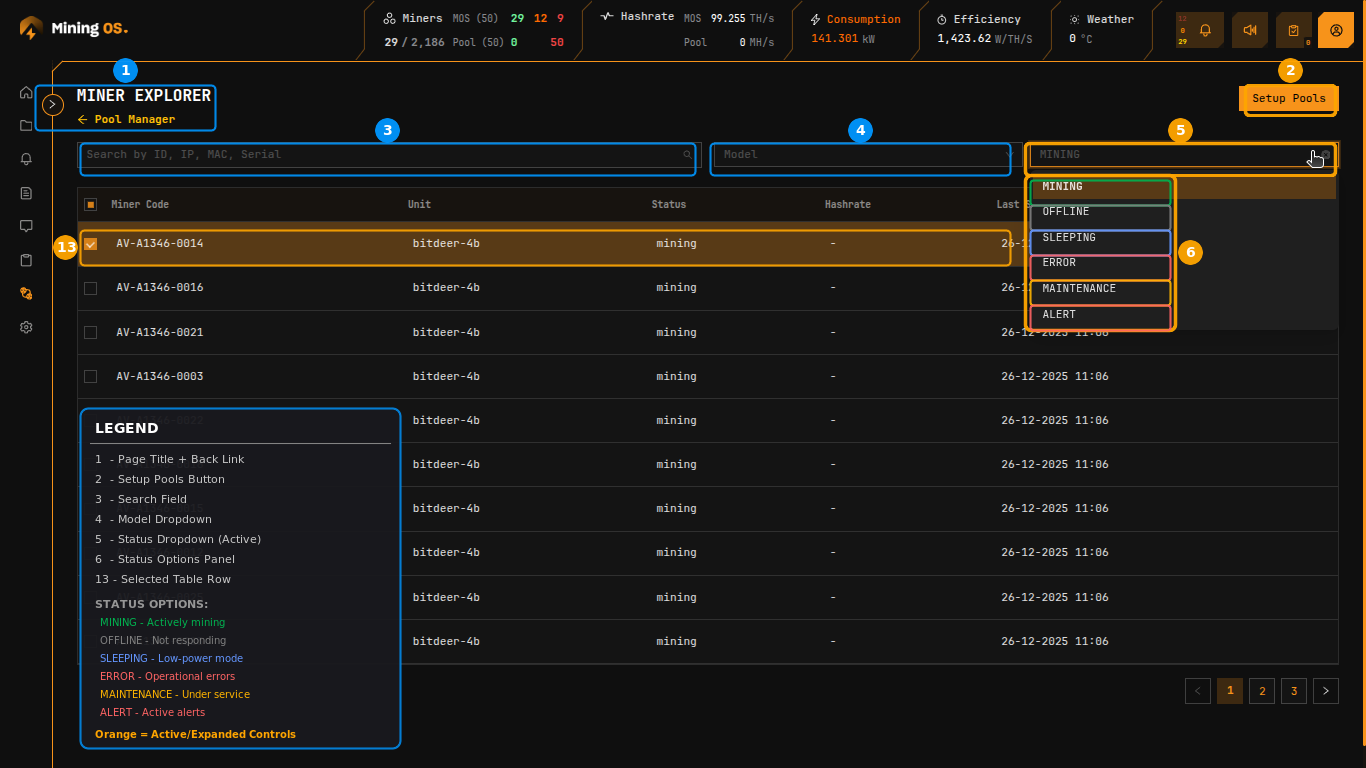 Figure 5: Status filter dropdown showing available options
| Status | Description |
|---|---|
| MINING | Actively mining and submitting shares |
| OFFLINE | Not responding to network requests |
| SLEEPING | In low-power sleep mode |
| ERROR | Experiencing operational errors |
| MAINTENANCE | Temporarily removed for maintenance |
| ALERT | Has active alerts requiring attention |
For details on power modes by miner model, see the Power Mode Support Table.
Status Color Coding
| Color | Status | Meaning |
|---|---|---|
| Green | mining | Actively mining |
| Gray | offline | Not responding |
| Orange | maintenance | Under maintenance |
| Red | error | Experiencing errors |
Row Selection
Click the checkbox to select miners for bulk operations. Selected rows appear highlighted. The header checkbox enables select-all functionality for the current page.
Pagination
Large miner lists utilize pagination controls at the bottom right: page number buttons for direct navigation, items per page selector (default: 10/page), and total page count indicator.
Sites Overview
The Sites Overview sub-page provides visual rack layouts for all mining sites, enabling intuitive pool assignment at the site, unit, or individual miner level. For temperature-based rack visualization, see Heatmaps.
All Sites View
The initial view displays all configured sites as cards:
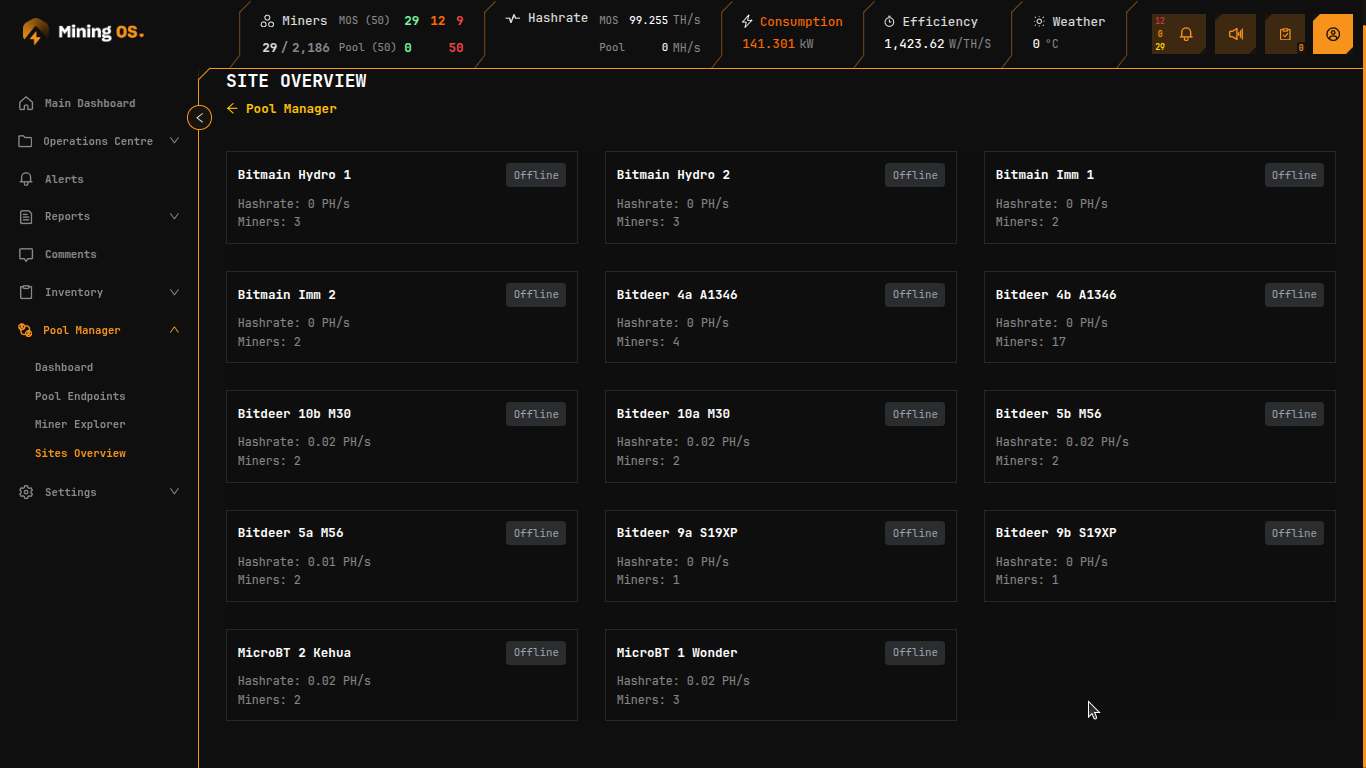 Figure 6: Sites Overview showing all site cards
| Element | Description |
|---|---|
| Site Name | Container/unit identifier (e.g., "Bitmain Hydro 1") |
| Status Badge | Current status (Online/Offline) |
| Hashrate | Aggregated hashrate for the site |
| Miners Count | Total miners at this site |
Click any site card to view its detailed rack layout.
Site Detail View
Selecting a site displays the rack grid visualization:
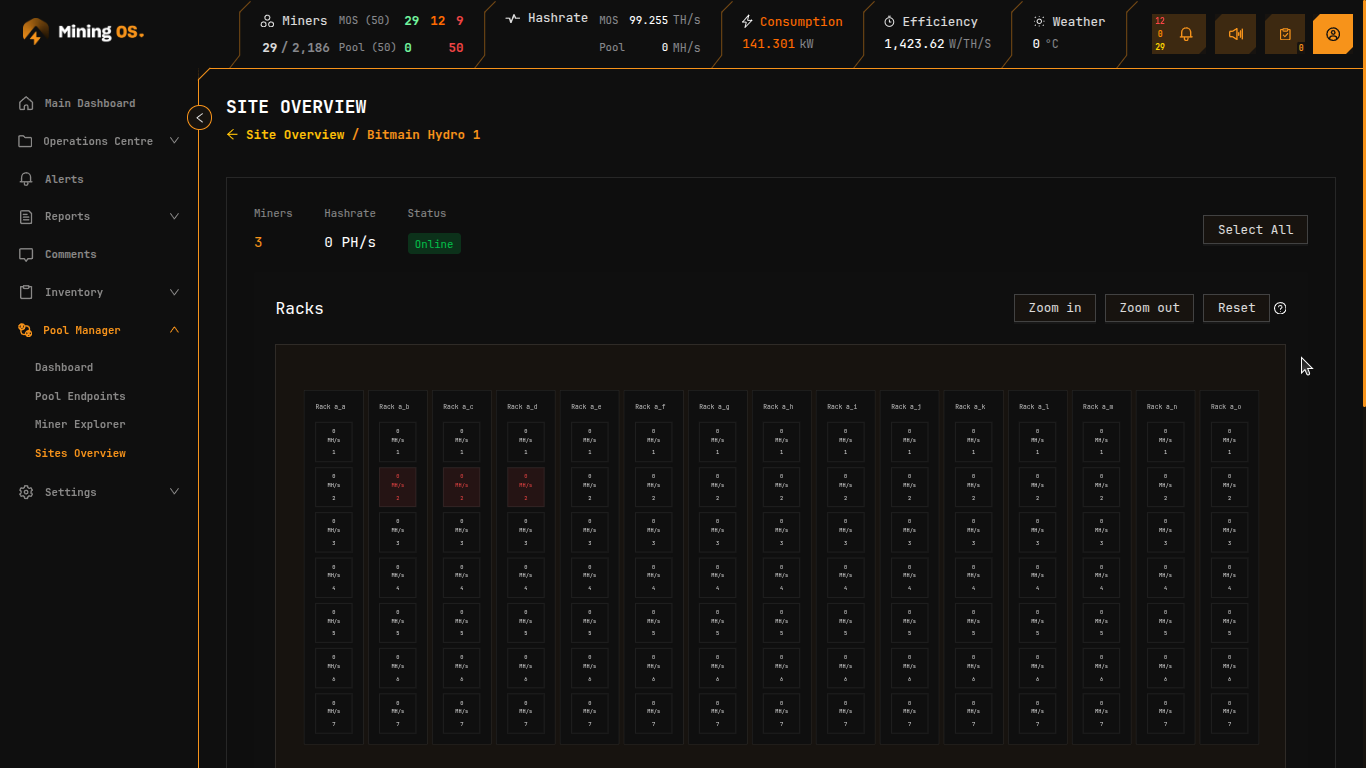 Figure 7: Site detail view with rack grid layout
Site Statistics Bar
| Metric | Description |
|---|---|
| Miners | Total miners at this site |
| Hashrate | Aggregated hashrate (PH/s) |
| Status | Overall site status indicator |
Action Buttons
| Button | Function |
|---|---|
| Setup Pools | Configure pool assignment for selected miners |
| Deselect All | Clear all miner selections |
| Select All | Select all miners in the current view |
Zoom Controls
| Control | Function |
|---|---|
| Zoom in | Increase grid cell size for detail |
| Zoom out | Decrease grid cell size for overview |
| Reset | Return to default zoom level |
| Help (?) | Display zoom control information |
Rack Grid Layout
The rack grid provides a visual representation of physical miner positions. For container-specific PDU layouts, see Bitdeer Container or Antspace Hydro Container.
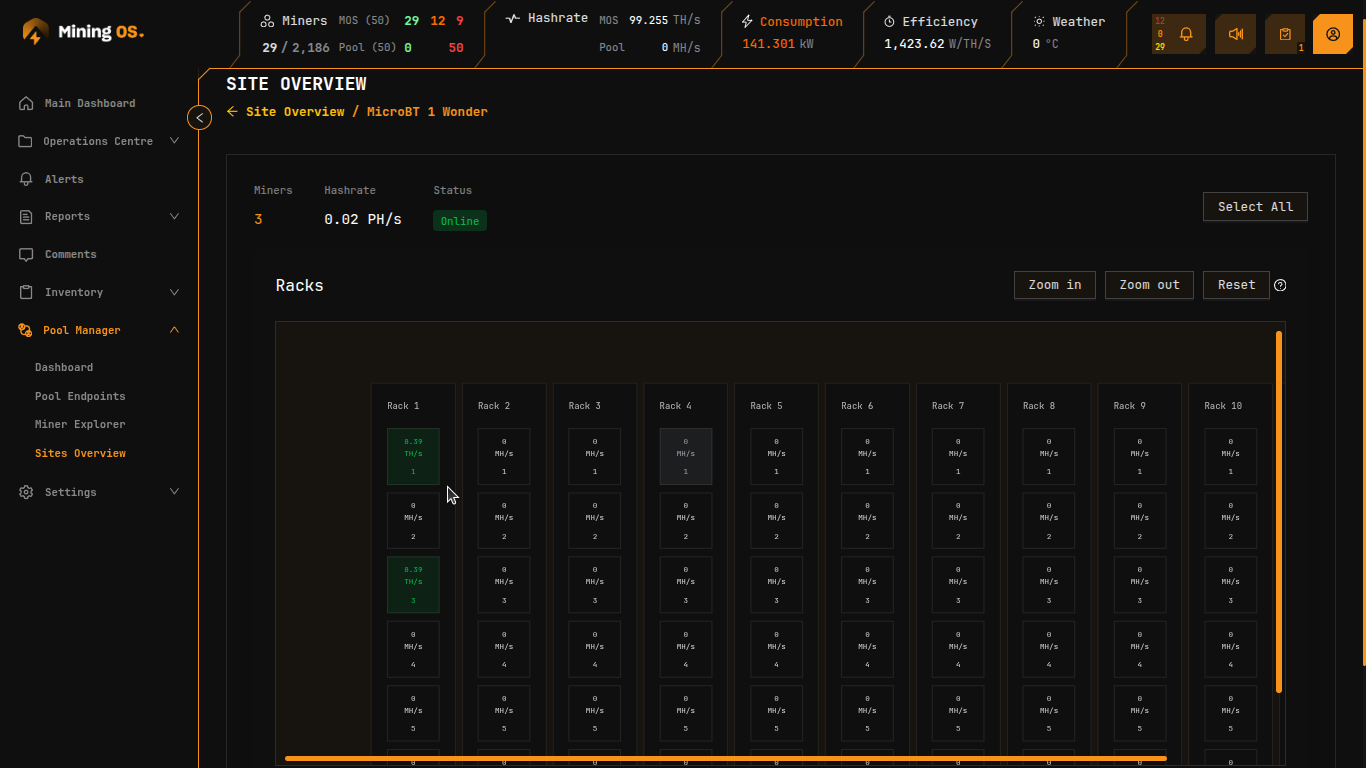 Figure 8: Rack grid showing active miners in green
Grid Structure
- Columns: Rack identifiers (Rack 1, Rack 2, or Rack
a_a, Racka_bfor alphanumeric naming) - Rows: Position numbers within each rack (1-7 or similar)
- Cells: Individual miner slots showing hashrate and position
Cell Information
Each cell displays: hashrate value (e.g., "0.39 TH/s") or "0 MH/s" for inactive, and position number within the rack.
Status Color Legend
The bottom of the rack view displays the color legend:
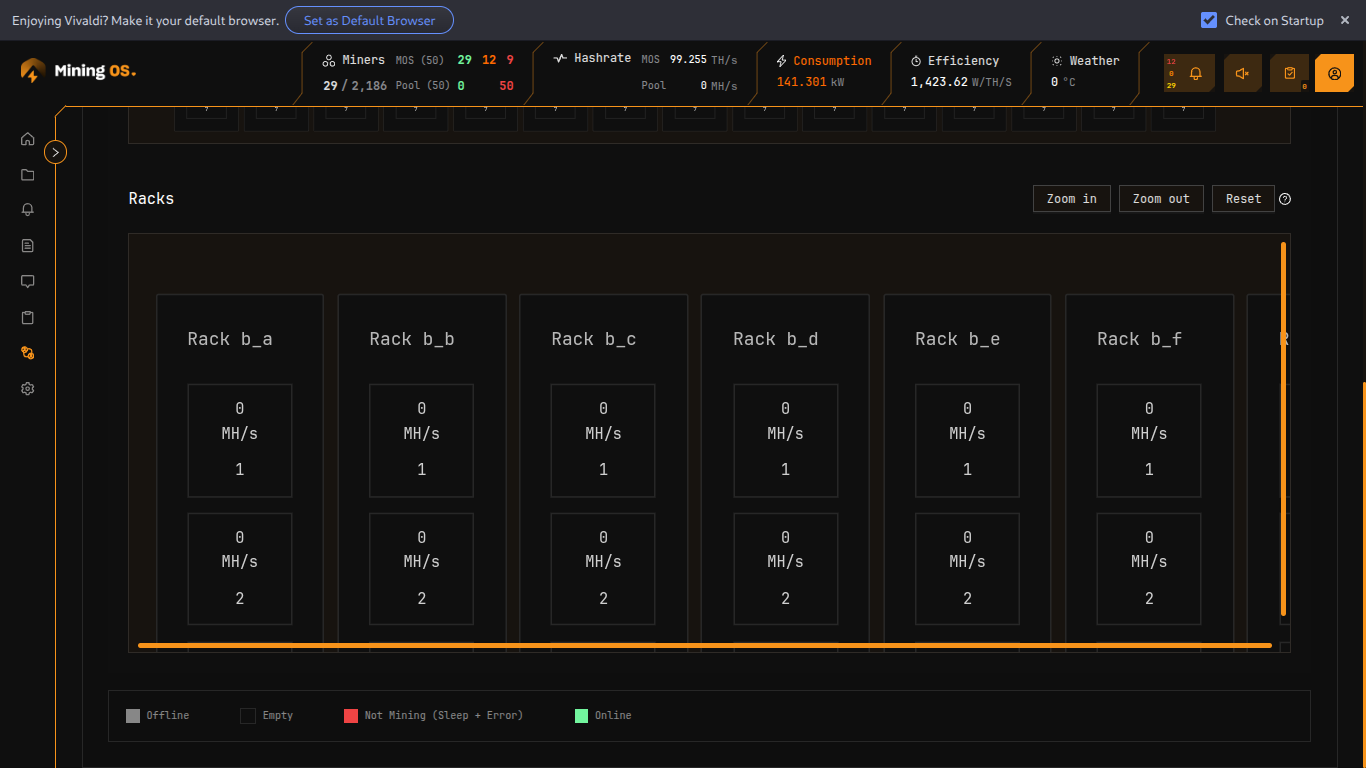 Figure 9: Status color legend showing miner states
| Color | Status | Description |
|---|---|---|
| Gray | Offline | Miner not responding to network |
| White | Empty | No miner installed in slot |
| Red | Not Mining | Sleep or Error state—not producing hashrate |
| Green | Online | Actively mining and submitting shares |
Not Mining Miners
Red cells indicate miners that are connected but not actively mining:
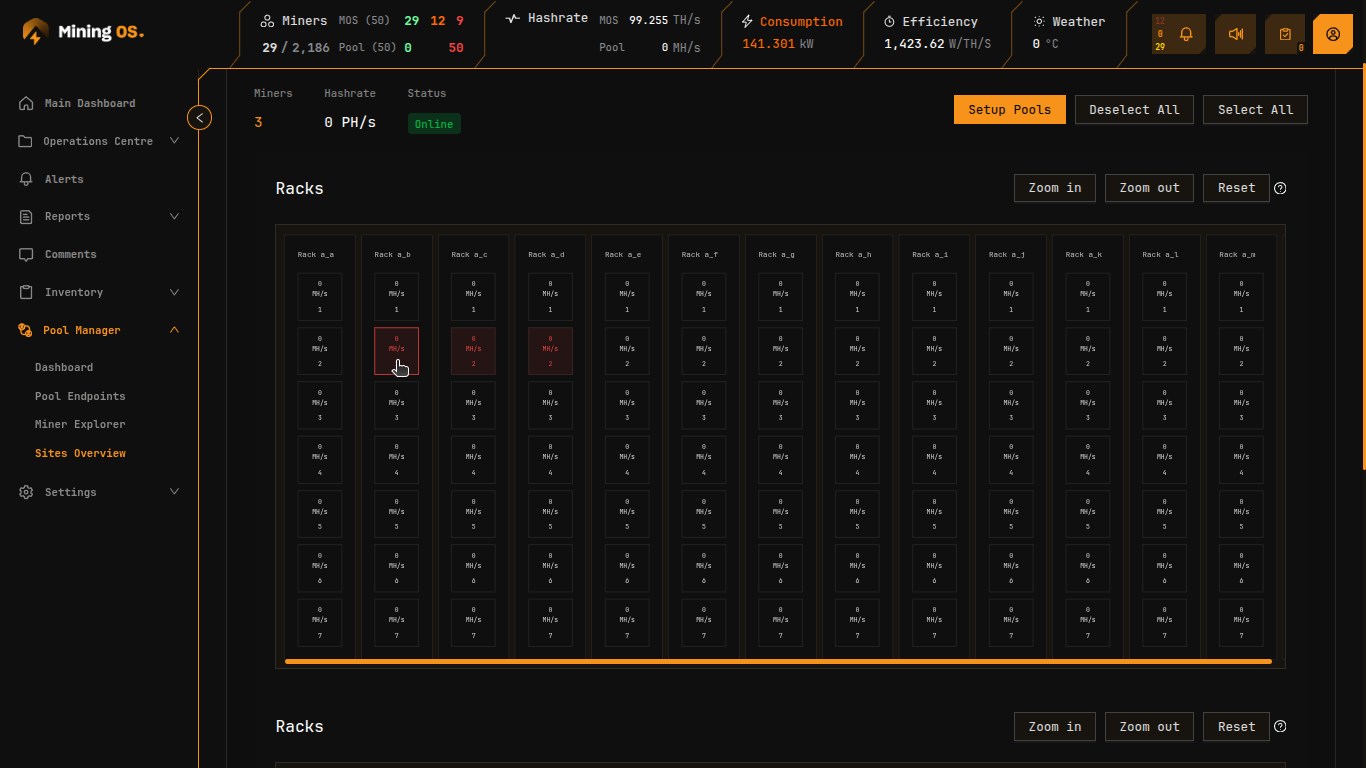 Figure 10: Rack grid showing miners in Sleep/Error state (red)
Common causes include:
- Miners in sleep mode for power management
- Hardware errors preventing mining
- Pool connectivity issues
- Temperature-related throttling
For troubleshooting, see Alerts Manual. For temperature analysis, see Heatmaps.
Setup Pools Warning
When configuring pools for active miners, a warning dialog appears:
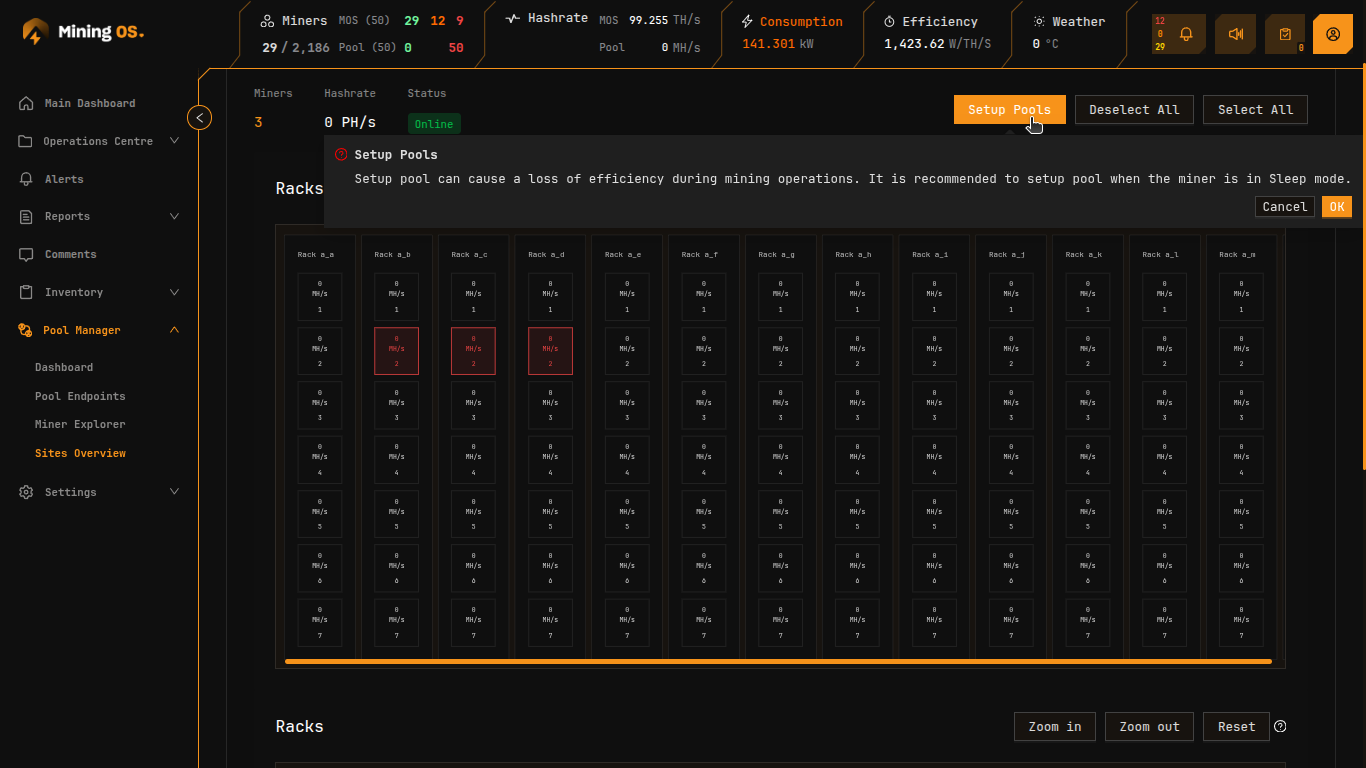 Figure 11: Setup Pools warning dialog
The warning states: "Setup pool can cause a loss of efficiency during mining operations. It is recommended to set up a pool when the miner is in Sleep mode."
| Button | Action |
|---|---|
| Cancel | Dismiss dialog without changes |
| OK | Proceed with pool configuration |
Alphanumeric Rack Naming
Some sites use alphanumeric rack naming conventions:
Figure 12: Site with alphanumeric rack naming (a_a, a_b, etc.)
| Naming Pattern | Example | Description |
|---|---|---|
| Numeric | Rack 1, Rack 2 | Simple sequential numbering |
| Alphanumeric | Rack a_a, Rack a_b | Row_column notation for large facilities |
Alerts Integration
Pool-related alerts appear in the global Alerts page and are accessible from the Pool Manager Dashboard.
Sound Notifications
Critical alerts trigger audio notifications only when the Alerts page is open in an active browser tab. For details on alert sound configuration, see Alerts Overview Page.
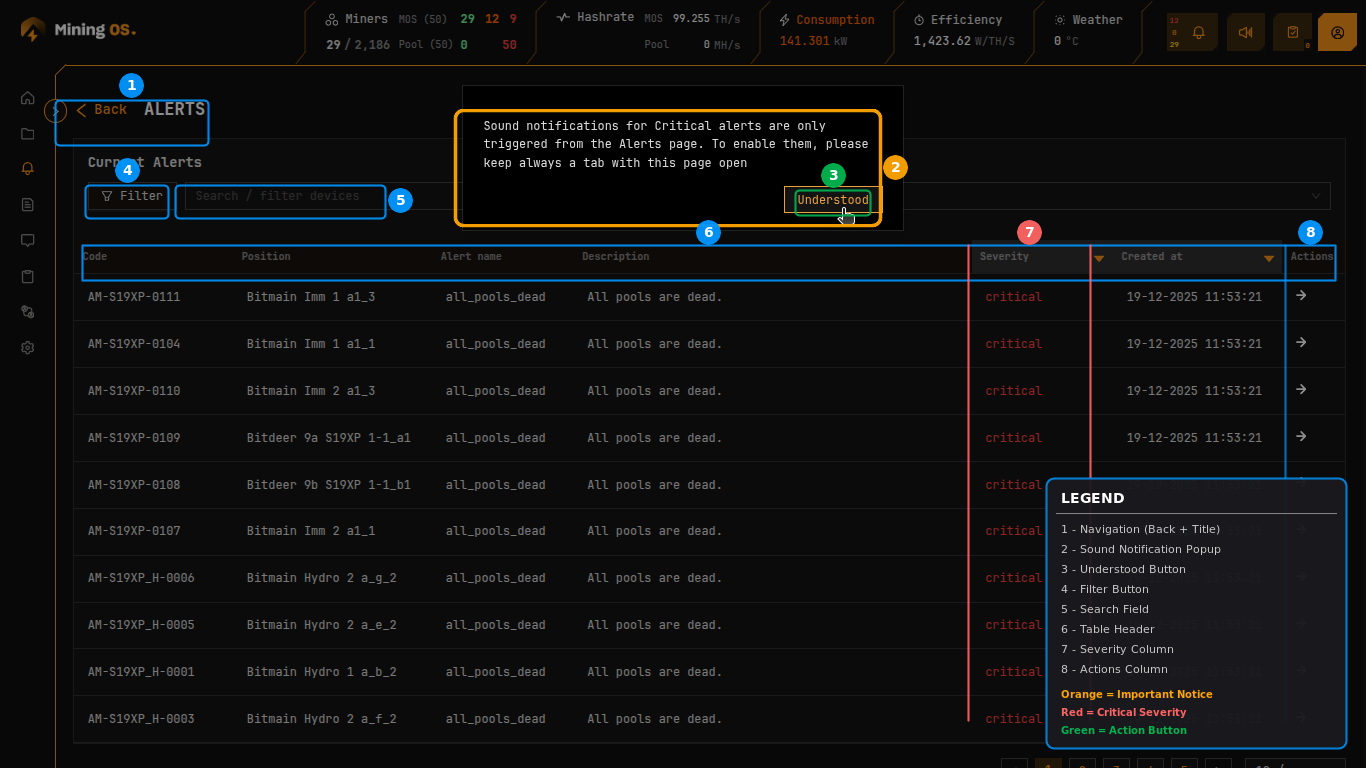 Figure 13: Alerts page with sound notification reminder
Alert Filtering
The Filter button opens advanced filtering options:
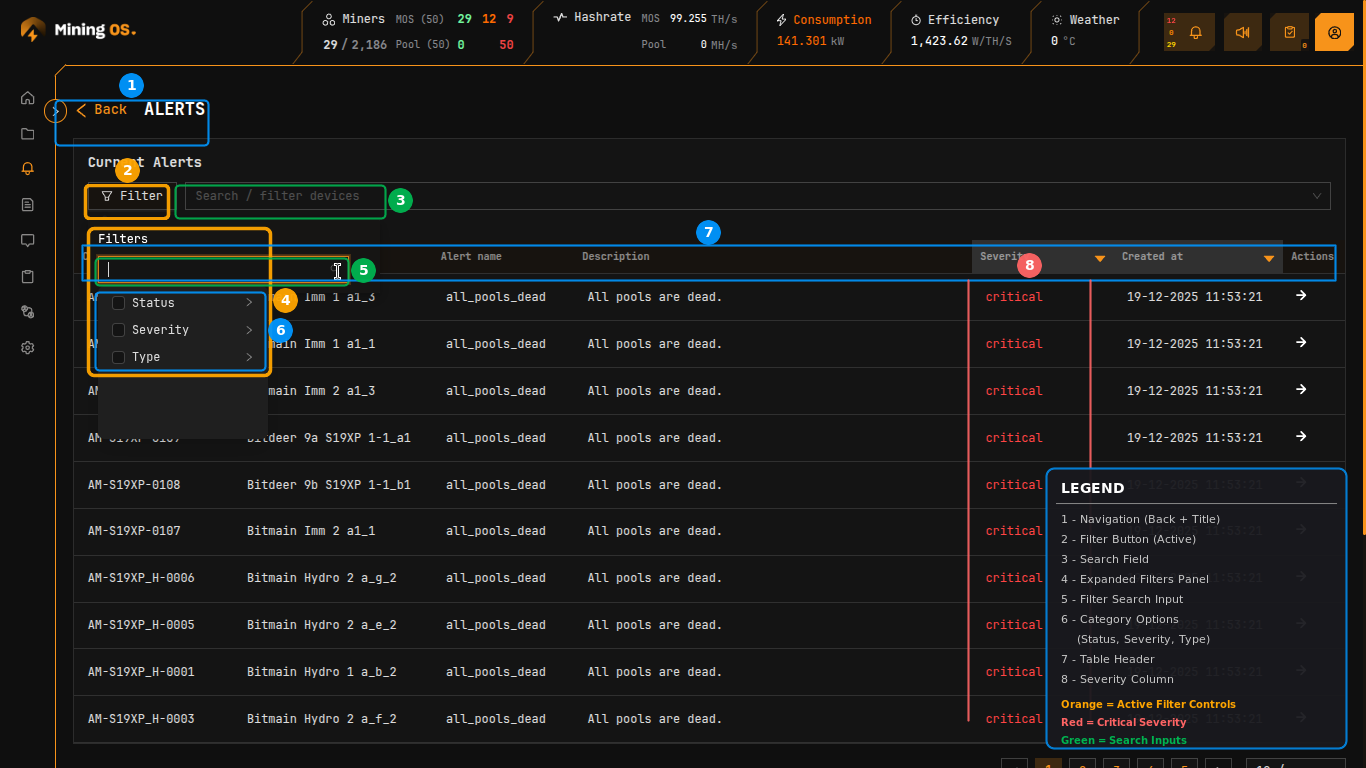 Figure 14: Alerts filter panel with search and category options
| Filter Category | Options |
|---|---|
| Status | Mining, Offline, Sleeping, Error |
| Severity | Critical, High, Medium |
| Type | Alert type categories |
Severity Filter
Filter alerts by priority level:
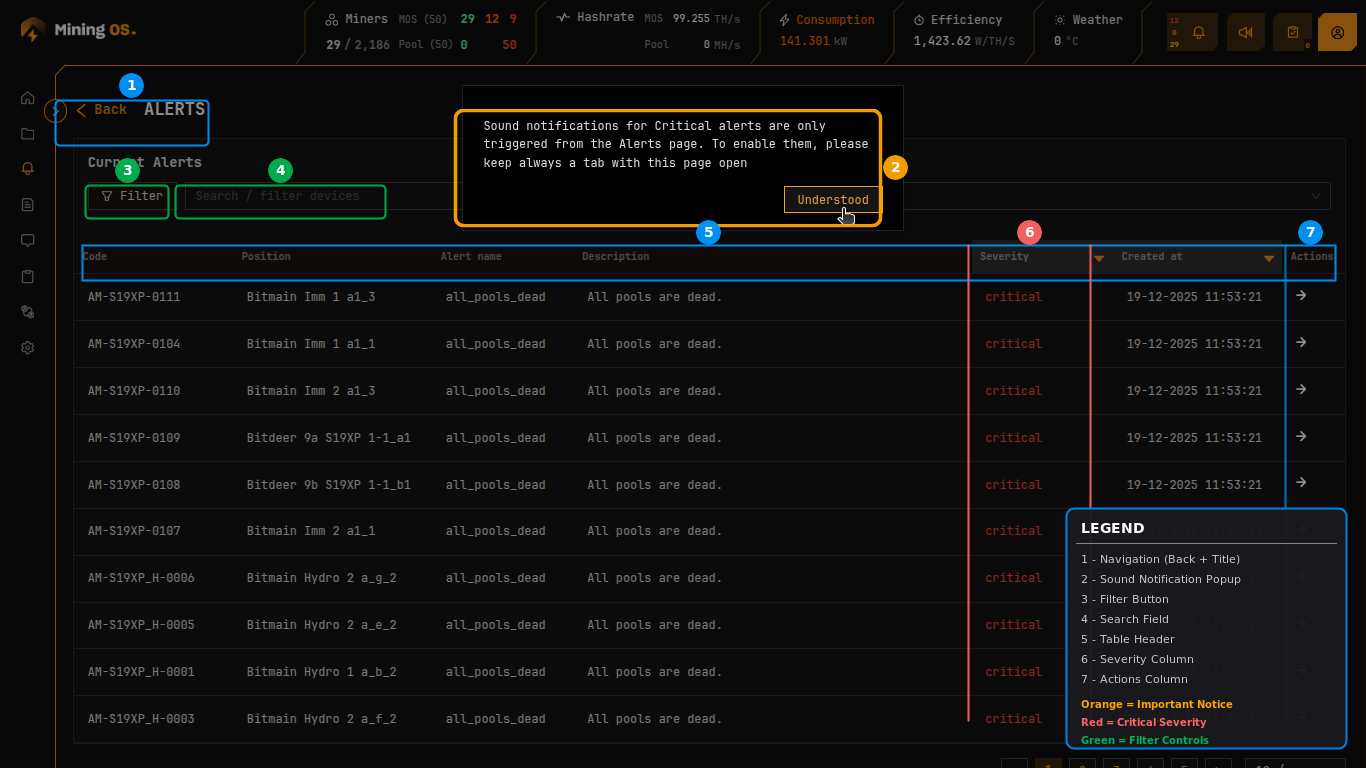 Figure 15: Severity filter showing Critical, High, Medium options
Active filters display as tags above the filter panel, with a count badge on the Filter button.
Status Filter
Filter by miner operational status:
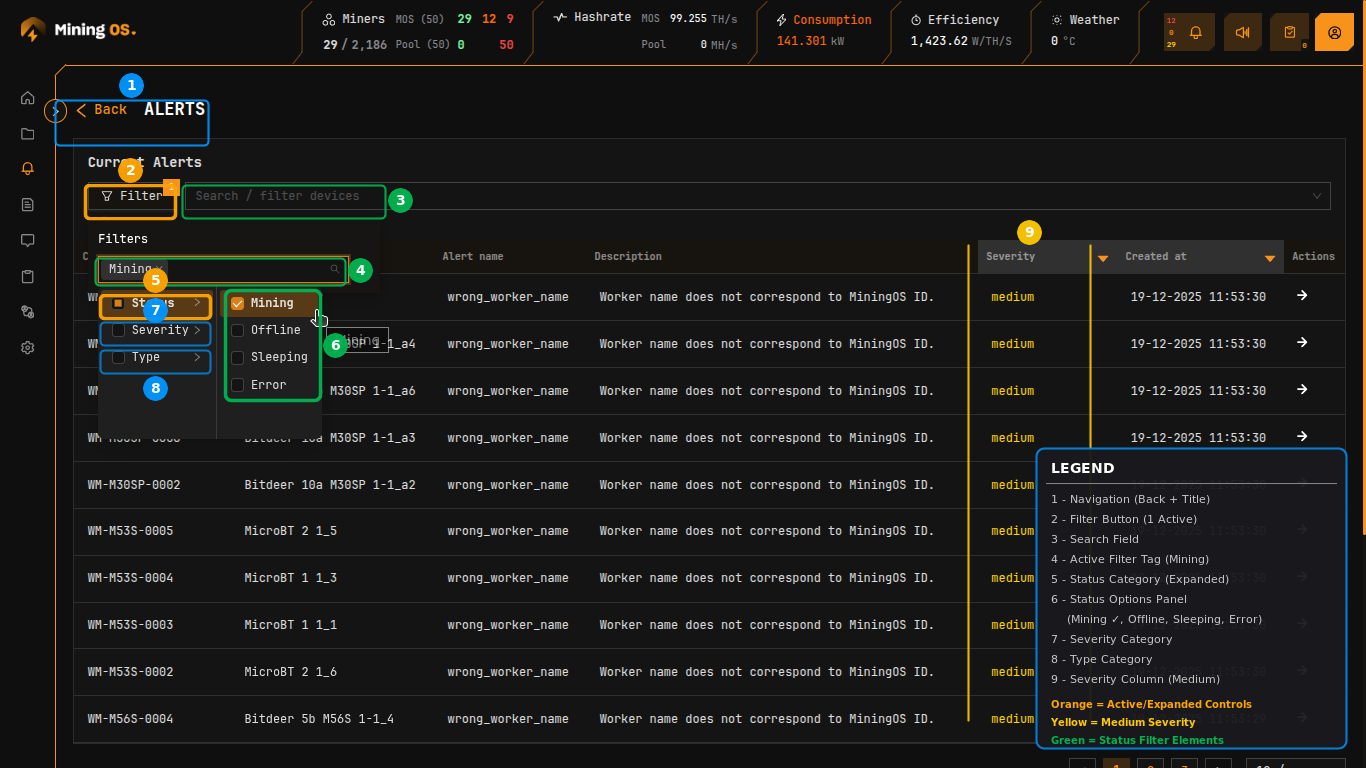 Figure 16: Status filter showing Mining selected
Common Pool-Related Alerts
| Alert Name | Description | Severity |
|---|---|---|
all_pools_dead | All mining pool connections have failed | Critical |
wrong_worker_name | Worker name does not correspond to MiningOS ID | Medium |
wrong_miner_pool | Miner connected to incorrect pool | Medium |
wrong_miner_subaccount | Miner using incorrect subaccount | Medium |
For a complete list of alerts, see Alerts Manual — Alert Reference.
Operational Best Practices
Configure failover pools — Always set up at least one failover endpoint for each pool to ensure mining continues during primary pool outages.
Use sleep mode for reconfiguration — When changing pool assignments, place miners in sleep mode first to avoid efficiency loss warnings and potential share rejection. See Power Mode Support Table for model-specific sleep mode availability.
Monitor pool connectivity — Check the header bar's Pool indicator regularly. A red "0" indicates pool connectivity issues requiring immediate attention.
Verify worker names — Ensure miner worker names match MiningOS IDs to enable accurate tracking and reporting. The wrong_worker_name alert indicates mismatches.
Balance across pools — Review the Units/Miners count in Pool Endpoints to ensure appropriate load distribution across your pool configurations.
Use bulk operations — For large-scale pool changes, use the Sites Overview visual selection or Miner Explorer bulk assignment rather than individual miner configuration.
Keep Alerts tab open — Maintain a dedicated browser tab on the Alerts page to receive audio notifications for critical pool-related events.
Setup pools from MiningOS only — Always configure pools through MiningOS rather than vendor tools. See Bitdeer Container Setup for important warnings about pool configuration.
For additional operational guidelines, see Operational Best Practices.
Related Documentation
Operator Manual
- Dashboard — Main dashboard with pool status overview
- Explorer — Device search and management
- Heatmaps — Temperature-based rack visualization
- Alerts Manual — Alert types and troubleshooting
- Settings — User management and system configuration
- Inventory Module — Fleet and spare parts management
- Operational Best Practices — Recommended procedures
Container-Specific Pool Setup
- Bitdeer Container — Pool setup for Bitdeer containers
- Antspace Hydro Container — Pool setup for Bitmain Antspace
Architecture & Installation
- Architecture — System architecture and worker hierarchy
- Architecture — Worker Types — Pool worker implementation
- Installation — MiningOS installation and pool worker setup
- Installation — Ocean Pool — Ocean worker configuration
- Installation — F2Pool — F2Pool worker configuration
Contributor Guide
- Adding New Worker Type — How to add support for new mining pools
- Repository Structure — Understanding pool worker organization
External Resources
- Ocean Pool — Ocean mining pool
- Ocean API Documentation — Ocean API reference
- F2Pool — F2Pool mining pool
- F2Pool API Documentation — F2Pool API reference
- Bitmain Support — Antminer documentation
- MicroBT — Whatsminer documentation
- Canaan — Avalon documentation