

Spare Parts Inventory
Manage replacement components including control boards, power supply units, and hashboards.
The Spare Parts Inventory sub-page manages replacement components for mining equipment. Accessible from the Inventory sidebar, this view tracks control boards, power supply units, and hashboards separately from complete mining units.
For complete miner management, see the Miners Inventory page. For repair workflows involving parts, see Repair History.
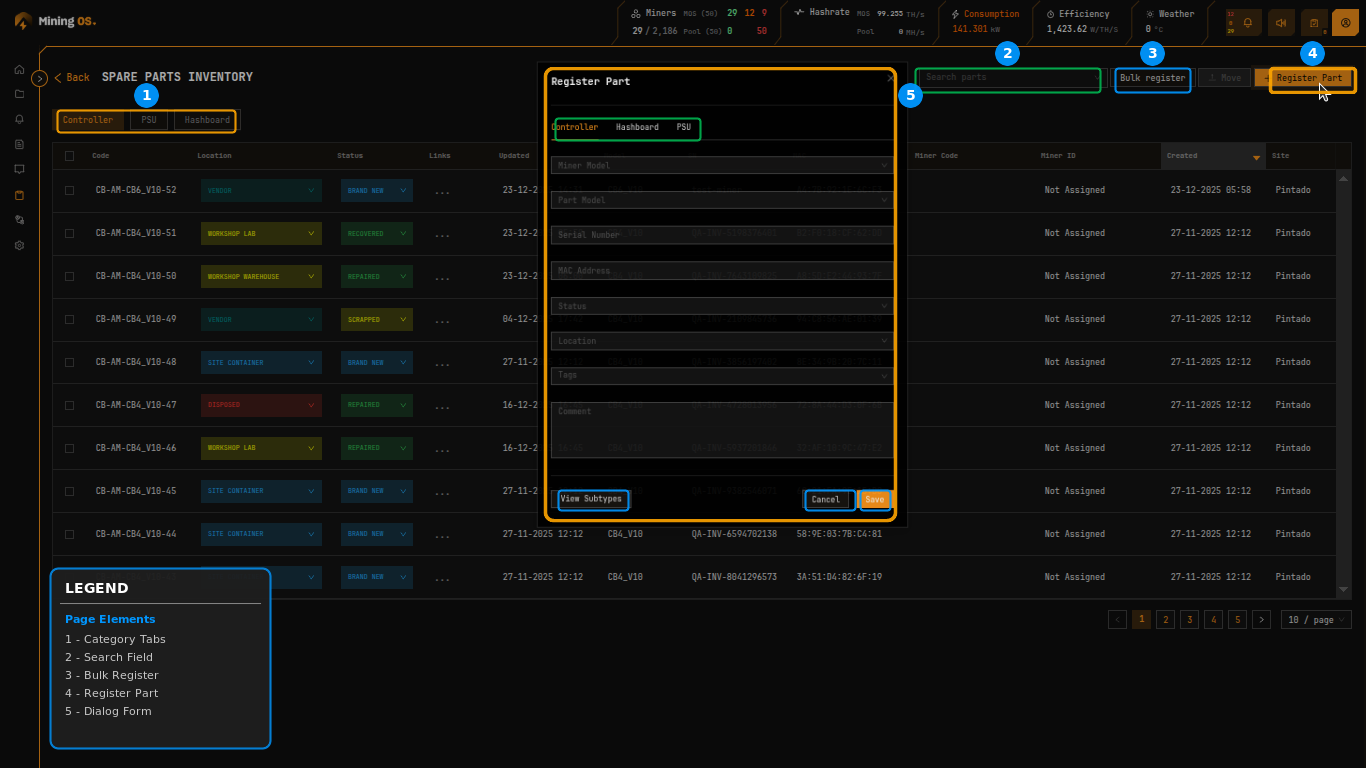 Figure 13: Spare Parts Inventory showing Controller tab with Register Part dialog
Quick Navigation
| Section | Description |
|---|---|
| Category Tabs | Component type selection |
| Page Controls | Search and bulk operations |
| Parts Table | Column definitions |
| Location Selector | Quick location updates |
| Status Selector | Lifecycle state management |
| Register Part Dialog | Adding individual parts |
| Bulk Add Parts | CSV import |
| Code Naming Convention | Part identifier format |
| Miner Association | Tracking installed parts |
Category Tabs
The page header features three category tabs enabling focused management of each component type. These categories align with the component panels in the Current Site Overview.
| Tab | Component | Code Prefix | Description |
|---|---|---|---|
| Controller | Control boards | CB- | Computational brain managing miner coordination |
| PSU | Power supply units | PSU- | Converts facility power to required voltages |
| Hashboard | ASIC mining boards | HB- | Performs actual mining computations |
Selecting a tab filters the table to display only parts of that category. The active tab appears highlighted with an orange background.
For hardware specifications by manufacturer, see Supported Devices.
Page Controls
The control bar provides search, bulk operations, and registration functions.
| Control | Function |
|---|---|
| Search parts | Filter by part code, serial number, or MAC address |
| Bulk register | Import multiple parts via CSV file |
| Move | Batch location reassignment (when parts selected) |
| Register Part | Add individual components |
Parts Table
The inventory table displays component records with comprehensive tracking columns.
| Column | Description | Related Documentation |
|---|---|---|
| Code | Unique identifier: [TYPE]-[MINER_MODEL]-[SEQUENCE] | Code Naming Convention |
| Location | Current physical location (editable) | Current Site Overview |
| Status | Current lifecycle status (editable) | — |
| Links | Quick action menu (ellipsis icon) | — |
| Updated | Timestamp of last modification | Historical Movements |
| Model | Part model designation | — |
| SN | Serial number (QA inventory reference) | — |
| MAC | Network MAC address (control boards only) | — |
| Miner Code | Associated miner when installed | Miner Association |
| Miner ID | System identifier of associated miner | — |
| Created | Timestamp when part was added | — |
| Site | Assigned site name | — |
Location Selector
Each row features an inline Location dropdown for quick reassignment. Location values match those in the Miners Inventory.
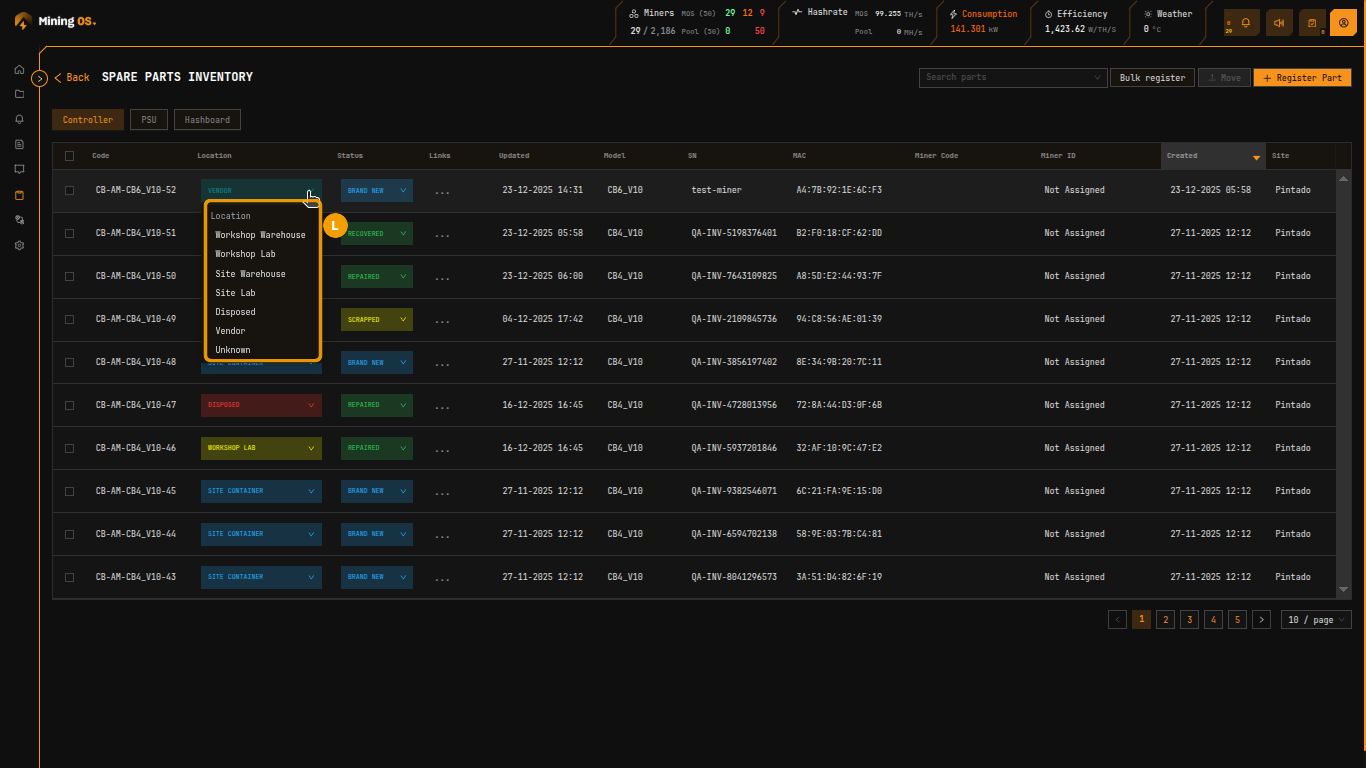 Figure 14: Location dropdown showing available assignment options
| Location | Purpose | Typical Status |
|---|---|---|
| Workshop Warehouse | Storage within repair facility | Brand New, Recovered |
| Workshop Lab | Active repair or diagnostic bench | Faulty |
| Site Warehouse | On-site storage awaiting deployment | Brand New, Repaired |
| Site Lab | On-site testing area | Repaired |
| Disposed | Permanently removed from service | Scrapped |
| Vendor | Sent for external repair or RMA | Faulty |
| Unknown | Location not yet confirmed | Any |
Status Selector
The Status dropdown tracks component lifecycle state. Spare parts include a Recovered status not present in the Miners Inventory, indicating components salvaged from decommissioned units.
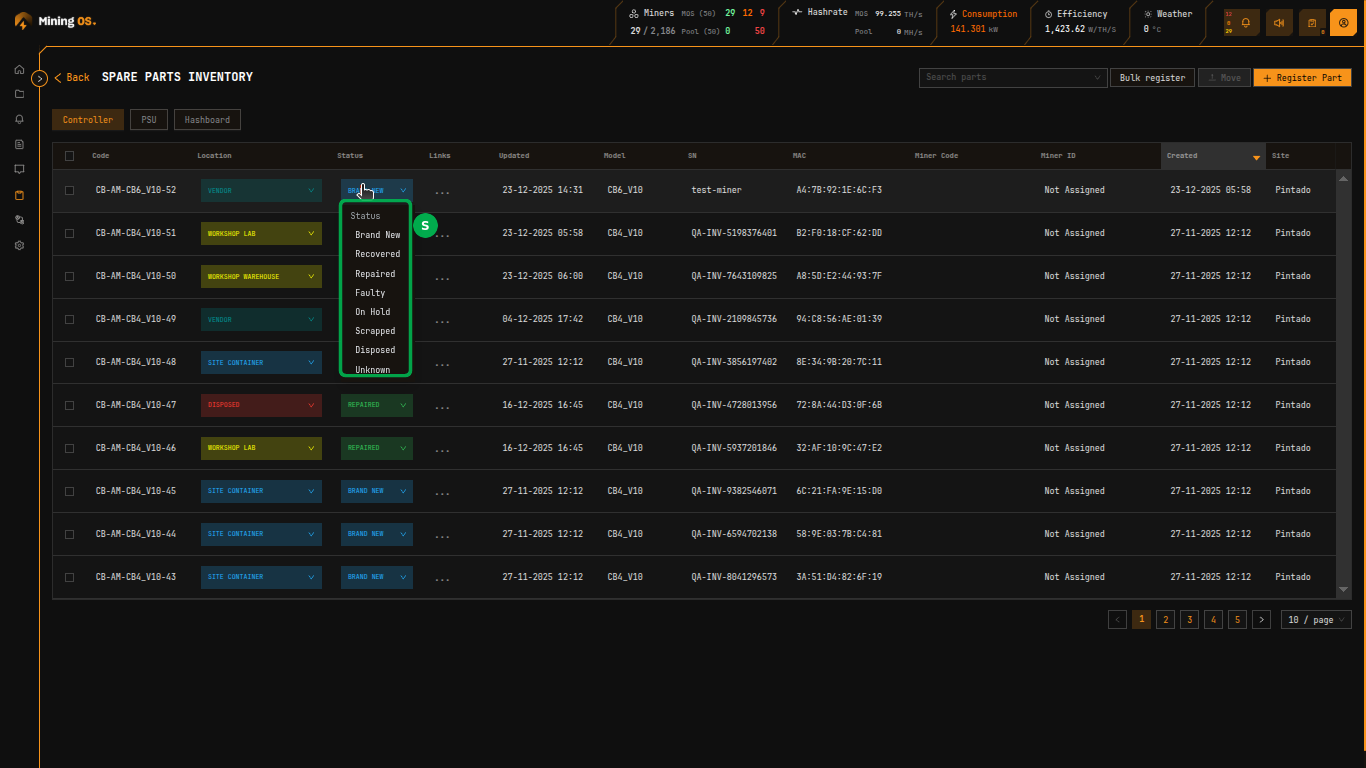 Figure 15: Status dropdown showing lifecycle states including Recovered
| Status | Description | Typical Use |
|---|---|---|
| Brand New | Factory-sealed, never installed | New inventory |
| Recovered | Salvaged from decommissioned miner, tested functional | Cost-effective reuse |
| Repaired | Returned to operational condition after maintenance | After repair |
| Faulty | Identified as non-functional, awaiting diagnosis | Needs attention |
| On Hold | Temporarily removed from rotation | Under review |
| Scrapped | Deemed beyond economical repair | End of life |
| Disposed | Permanently removed from inventory | Removed |
| Unknown | Status not yet determined | Needs audit |
For operational best practices on tracking recovered parts, see Operational Best Practices.
Register Part Dialog
The Register Part button opens a modal for adding individual components to inventory.
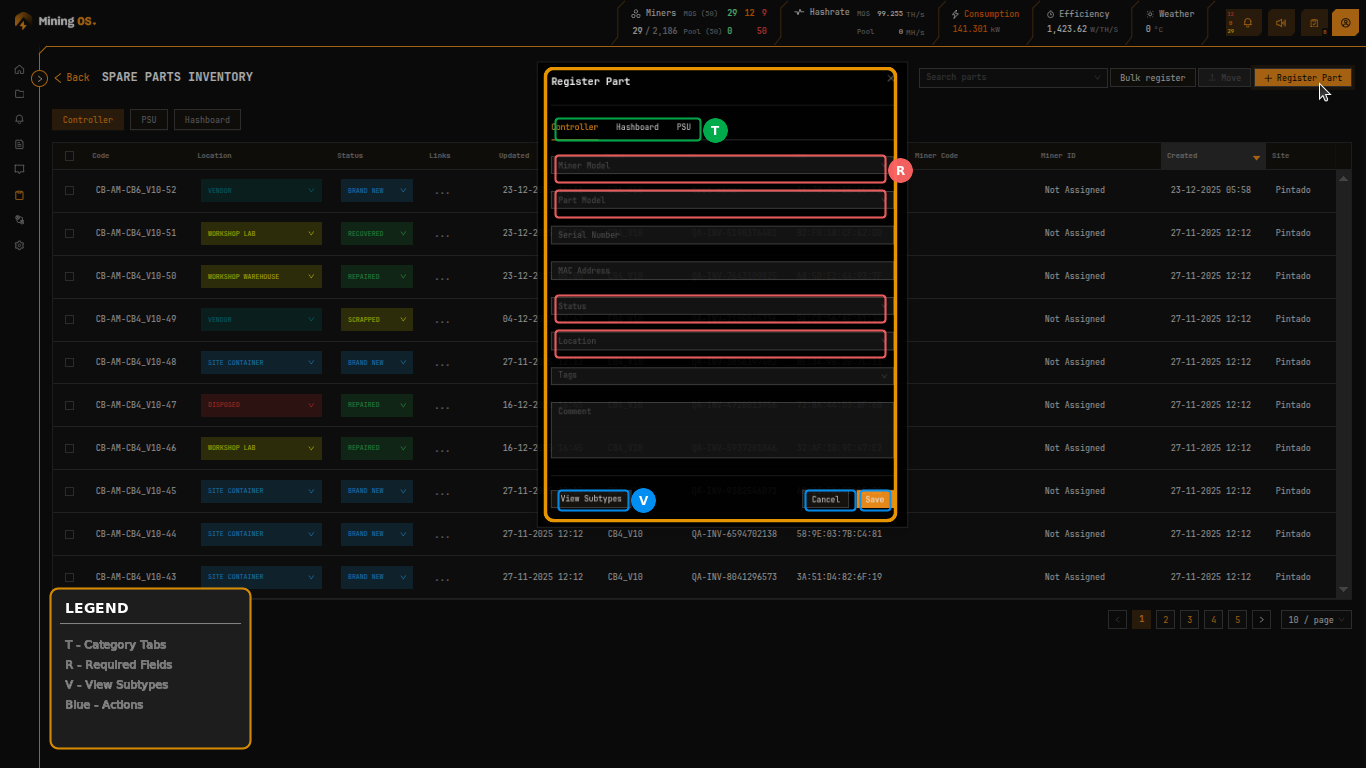 Figure 16: Register Part form with category tabs and configuration fields
| Field | Description | Required |
|---|---|---|
| Miner Model | Compatible miner model for this part. See Supported Devices | Yes |
| Part Model | Specific part model designation | Yes |
| Serial Number | Manufacturer or QA serial number | No |
| MAC Address | Network address (control boards only) | No |
| Status | Initial lifecycle status | Yes |
| Location | Initial physical location | Yes |
| Tags | Classification labels for filtering | No |
| Comment | Free-form notes about the part | No |
The View Subtypes button displays compatible part variants for the selected miner model.
Bulk Add Parts
The Bulk register button opens a dialog for importing multiple parts via CSV file, streamlining large inventory additions.
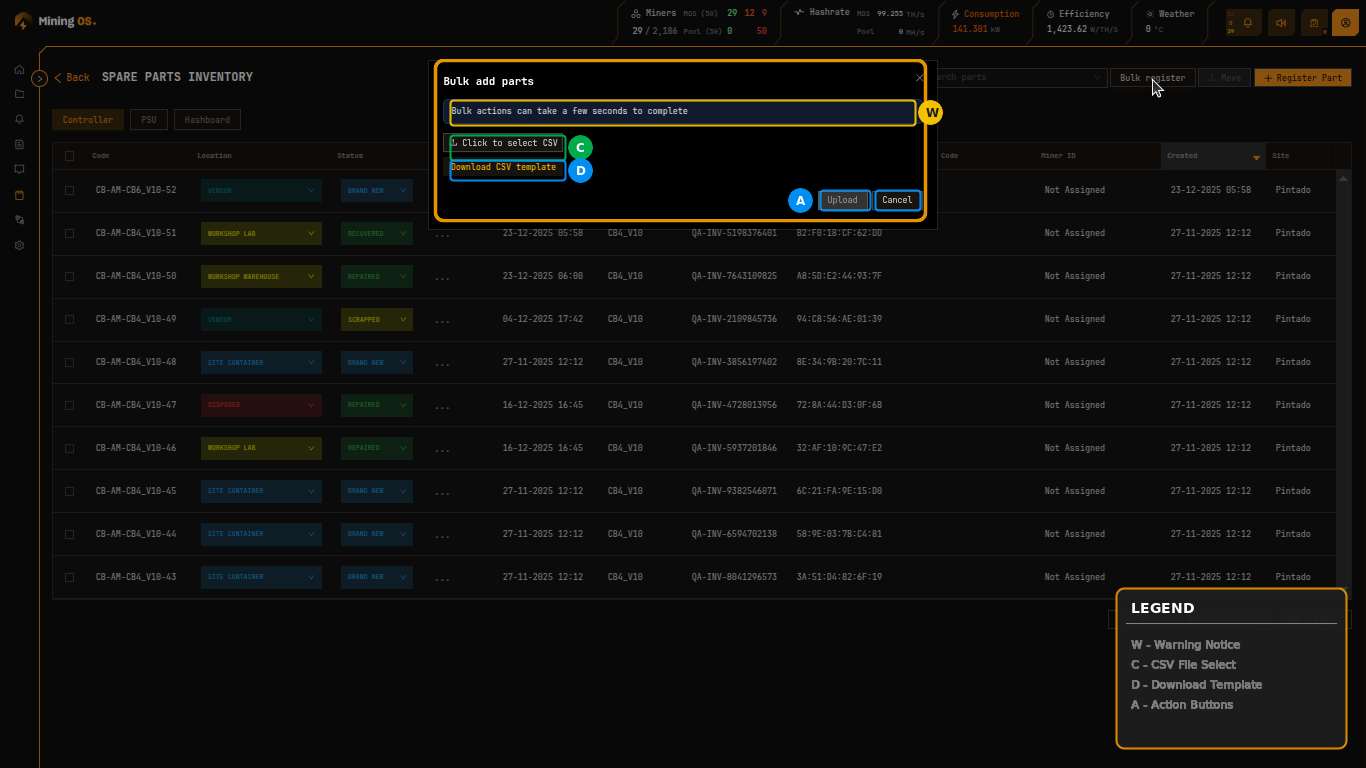 Figure 17: Bulk add parts dialog with CSV upload and template download
| Element | Function |
|---|---|
| Click to select CSV | Opens file browser for import file |
| Download CSV template | Provides properly formatted template |
| Upload | Initiates import process |
| Cancel | Dismisses dialog |
Bulk operations may require several seconds to complete for large imports. For best practices on bulk imports, see Operational Best Practices.
Code Naming Convention
Spare part codes encode component type, compatible miner model, and sequence information.
| Prefix | Component Type | Example |
|---|---|---|
| CB- | Control Board | CB-AM-CB4_V10-52 |
| PSU- | Power Supply Unit | PSU-AM-APW12-001 |
| HB- | Hashboard | HB-AM-S19XP-127 |
The middle segment indicates the compatible miner manufacturer and model:
| Code Segment | Manufacturer | Reference |
|---|---|---|
| AM- | Bitmain Antminer | Bitmain Support |
| WM- | MicroBT Whatsminer | MicroBT |
| AV- | Canaan Avalon | Canaan |
For complete miner model details, see Supported Devices.
Miner Association
Parts currently installed in miners display the associated Miner Code and Miner ID columns populated. Parts in storage or repair show "Not Assigned" in these columns.
When a part is installed in a miner through the repair workflow, the association is automatically recorded. Removing a part during repair clears the association and returns the part to inventory as a separate trackable item.
To view part installation history, see the Repair History page.