

Packaging
Manage shipping boxes and their contents for equipment transfers between mining sites.
The Packaging sub-page manages shipping boxes and their contents for equipment transfers between sites. This module enables accurate tracking of miners and spare parts during transit and simplifies receiving verification at destination sites.
For related inventory tracking, see Historical Device Movements. For spare parts management, see Spare Parts Inventory.
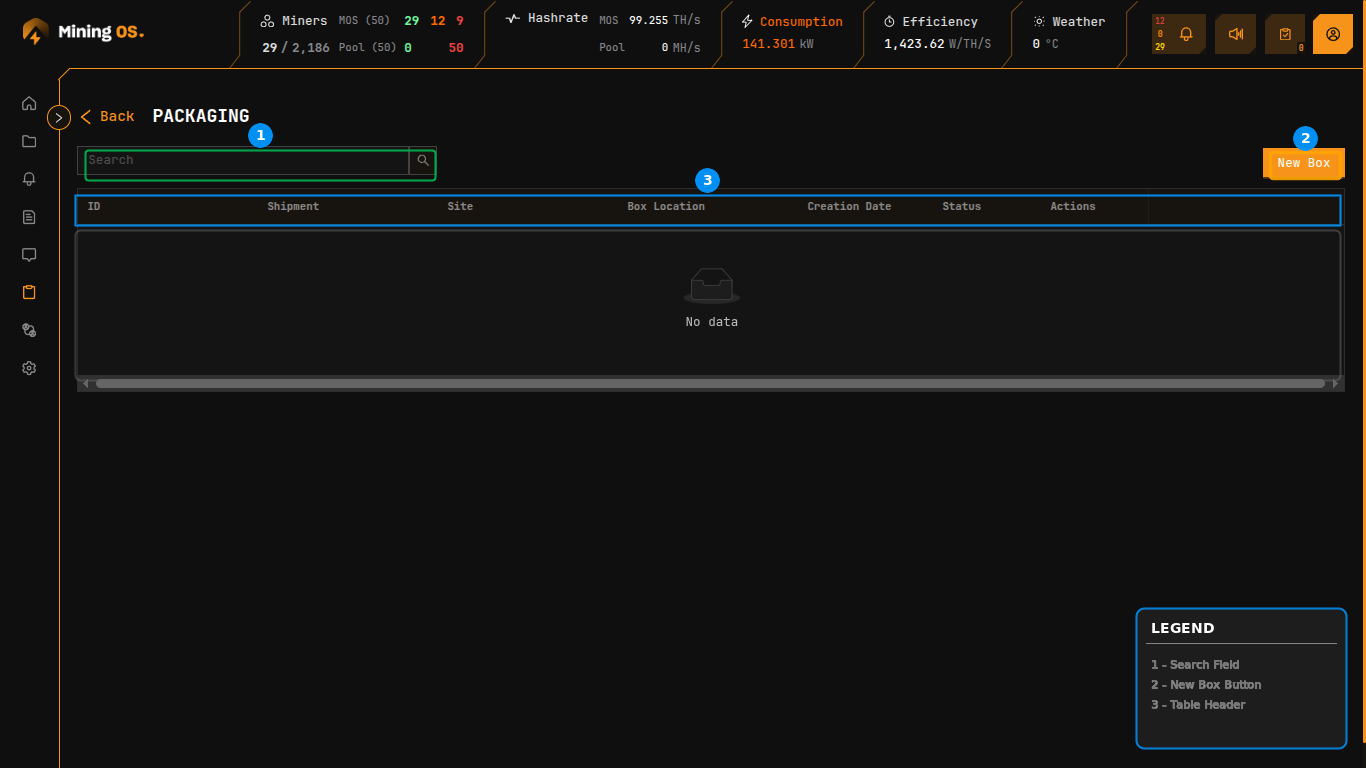 Figure 21: Packaging page showing shipment box tracking table
Quick Navigation
| Section | Description |
|---|---|
| Page Controls | Search and navigation |
| Packaging Table | Column definitions |
| Creating a New Box | Box creation workflow |
| Adding Items to a Box | Content management |
| Dialog Actions | Save and cancel operations |
Page Controls
| Control | Function |
|---|---|
| Search | Filter boxes by ID, shipment reference, or site name |
| New Box | Open the box creation dialog for preparing new shipments |
| Back | Return to the Inventory Dashboard |
Packaging Table
The table displays shipping boxes with tracking and status information.
| Column | Description |
|---|---|
| ID | Unique box identifier |
| Shipment | Associated shipment or transfer reference |
| Site | Origin or destination site |
| Box Location | Physical location type (Warehouse, Lab, Container) |
| Creation Date | Timestamp when box was created |
| Status | Current box status (Open, Sealed, Shipped, Received) |
| Actions | Context menu for box operations |
When no boxes exist, the table displays "No data" with an empty state icon.
Box Status Workflow
| Status | Description | Next Status |
|---|---|---|
| Open | Box created, accepting items | Sealed |
| Sealed | Box closed, ready for shipping | Shipped |
| Shipped | Box in transit | Received |
| Received | Box delivered and verified | — |
Creating a New Box
The New Box button opens a modal dialog for creating shipping boxes and adding contents.
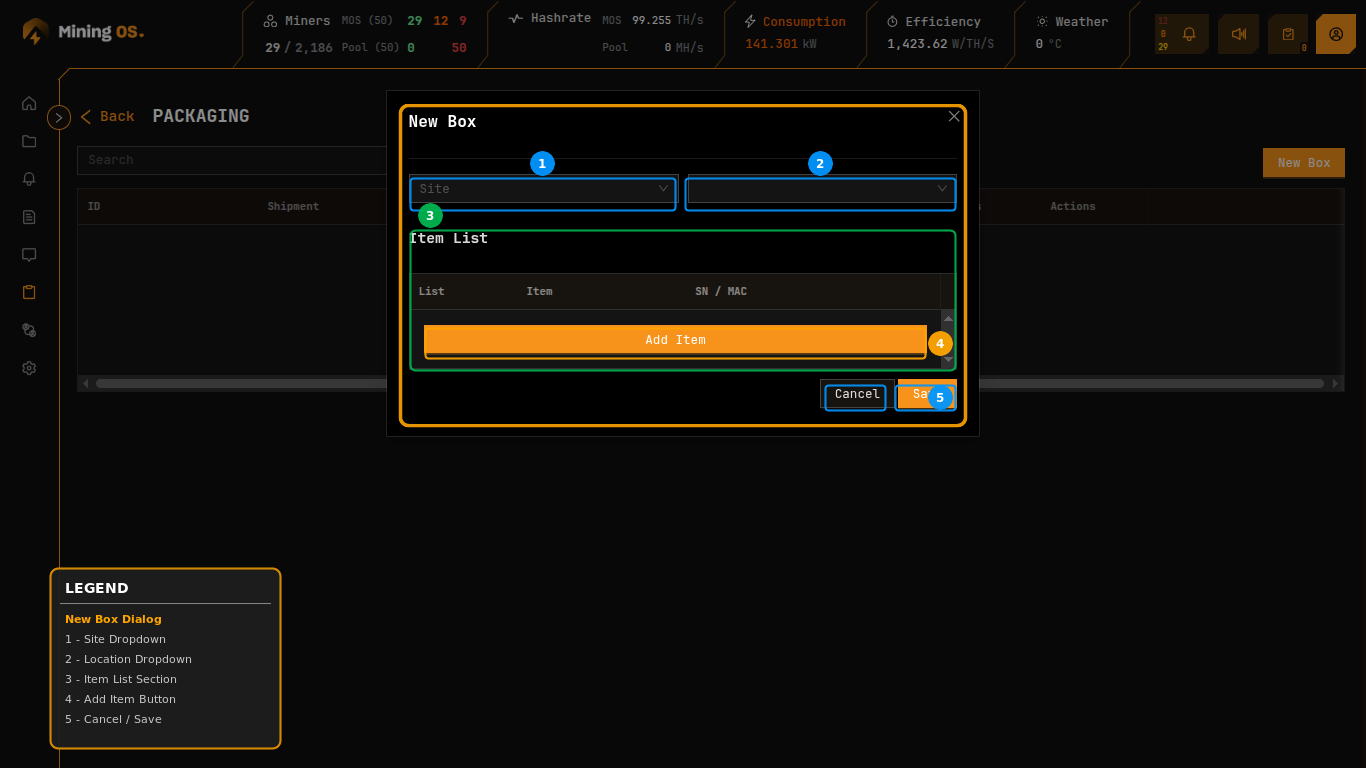 Figure 22: New Box dialog with site selection and item list
Configuration Fields
| Field | Description | Required |
|---|---|---|
| Site | Destination or origin site for the shipment | Yes |
| Box Location | Physical location type within the site | Yes |
Box Location Options
The Box Location dropdown specifies where the box will be stored or received.
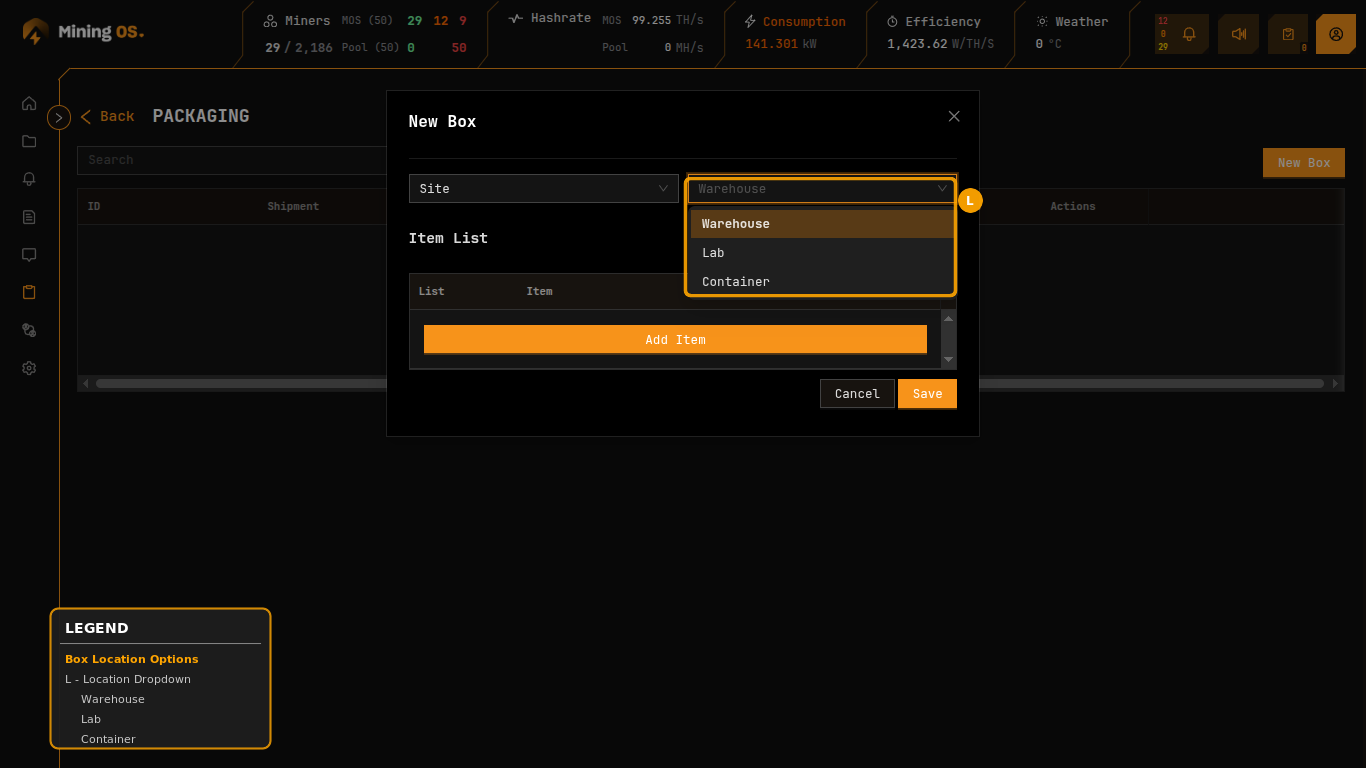 Figure 23: Box Location dropdown showing storage area options
| Location | Purpose | Related Documentation |
|---|---|---|
| Warehouse | General storage area | Current Site Overview |
| Lab | Testing or repair area | Repair History |
| Container | Production mining container | Bitdeer Container, Antspace Container |
These locations align with the tracking categories used in Miners Inventory and Spare Parts Inventory.
Adding Items to a Box
The lower portion of the dialog manages box contents through an item list interface.
| Column | Description |
|---|---|
| List | Row number for reference |
| Item | Item type or code (auto-populated on lookup) |
| SN / MAC | Serial number or MAC address used for lookup |
Click Add Item to reveal an inline entry form.
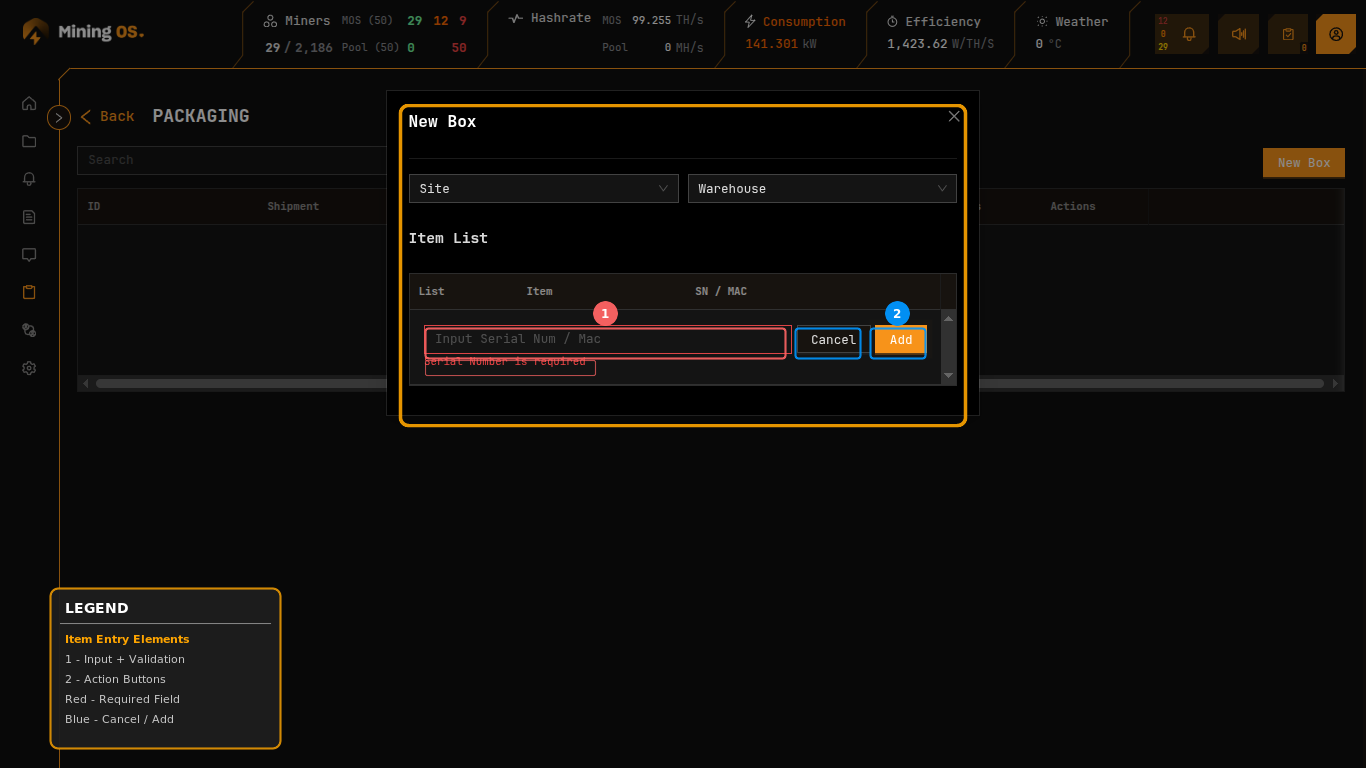 Figure 24: Item entry form with serial number lookup and validation
Item Entry Process
- Enter the serial number or MAC address in the input field
- The system looks up the item in Miners Inventory or Spare Parts Inventory
- Click Add to include the item in the box contents
- Item details are autopopulated from inventory records
Validation messages appear when required data is missing (e.g., "Serial Number is required").
Item Types Supported
| Item Type | Lookup Source | Code Format |
|---|---|---|
| Miners | Miners Inventory | AM-S19XP-0001 |
| Control Boards | Spare Parts — Controllers | CB-AM-CB4-0001 |
| PSUs | Spare Parts — PSUs | PSU-AM-APW12-0001 |
| Hashboards | Spare Parts — Hashboards | HB-AM-S19XP-0001 |
For code naming conventions, see Miners Inventory — Code Naming and Spare Parts — Code Naming.
Dialog Actions
| Button | Function |
|---|---|
| Cancel | Dismiss the dialog without saving |
| Save | Validate site and location selection, then create the box record with added items |
After Saving
When a box is saved:
- Box record is created with unique ID
- Items are associated with the box
- Item locations are updated to reflect "In Transit" status
- Box appears in the Packaging table
Receiving Shipments
When receiving a shipment:
- Locate the box in the Packaging table
- Verify contents against the item list
- Update box status to "Received"
- Update individual item locations as needed via Miners Inventory or Spare Parts Inventory
For movement tracking after receiving, see Historical Device Movements.
Integration with Inventory
| Operation | Effect on Inventory |
|---|---|
| Add item to box | Item tracked as "in shipment" |
| Ship box | Items in transit |
| Receive box | Items ready for location update |
| Remove item from box | Item returns to previous location |
For operational best practices on inventory management, see Operational Best Practices.