

Miners Inventory
Detailed management of individual mining units with tracking, filtering, and fleet-wide oversight.
The Miners Inventory sub-page provides detailed management of individual mining units. Accessible from the Inventory sidebar menu, this view enables operators to track, filter, and manage every miner in the fleet.
For the operational device explorer with live status, see Explorer. For container-based miner management, see O&M: Adding & Updating Miners.
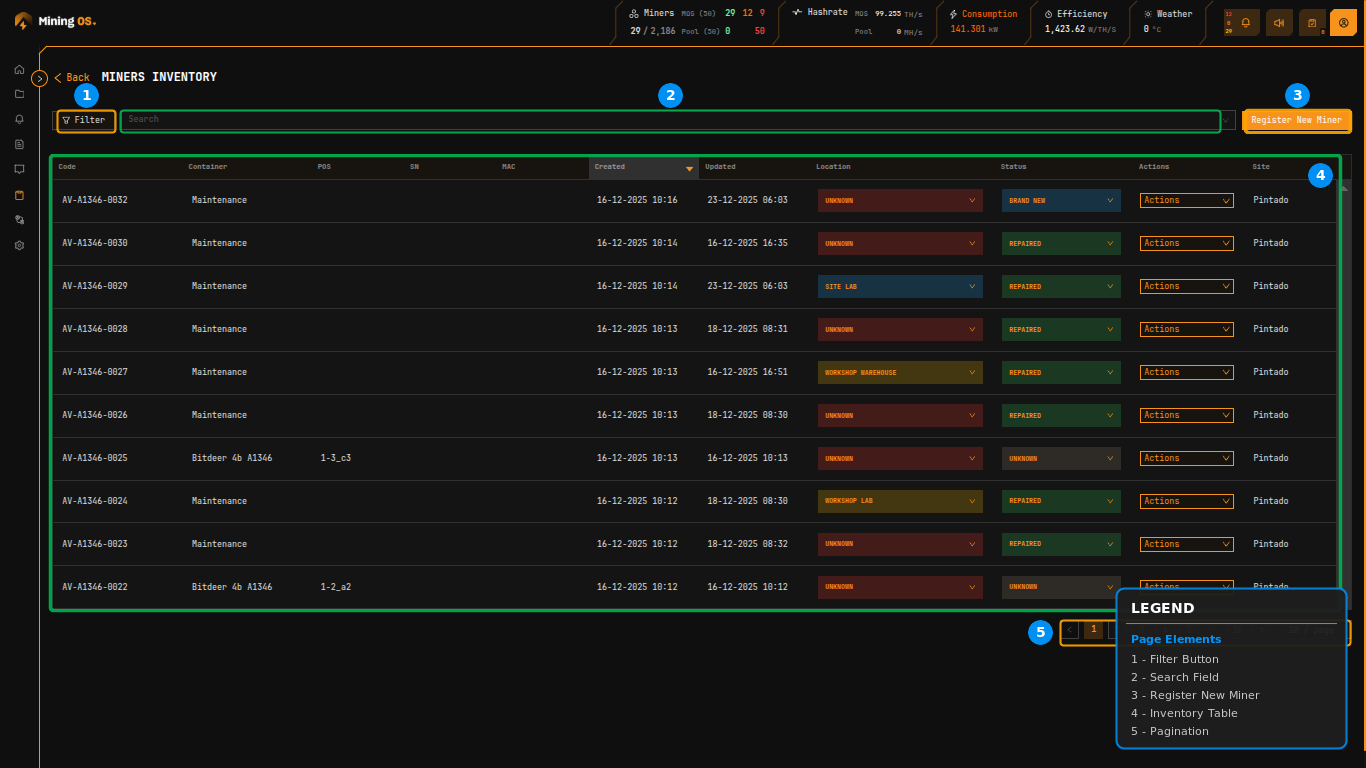 Figure 7: Miners Inventory table with filtering controls and action buttons
Quick Navigation
| Section | Description |
|---|---|
| Page Header | Navigation and controls |
| Inventory Table | Column definitions |
| Location Selector | Quick location updates |
| Status Selector | Lifecycle state management |
| Actions Menu | Context operations |
| Register New Miner | Adding new units |
| Code Naming Convention | Identifier format |
Page Header
The page header contains navigation and primary controls arranged horizontally. The Back link returns to the Inventory Dashboard, while the page title "MINERS INVENTORY" confirms the current context.
The Filter button opens advanced filtering options for narrowing the displayed results. Adjacent to it, the Search field provides type-ahead filtering by miner model.
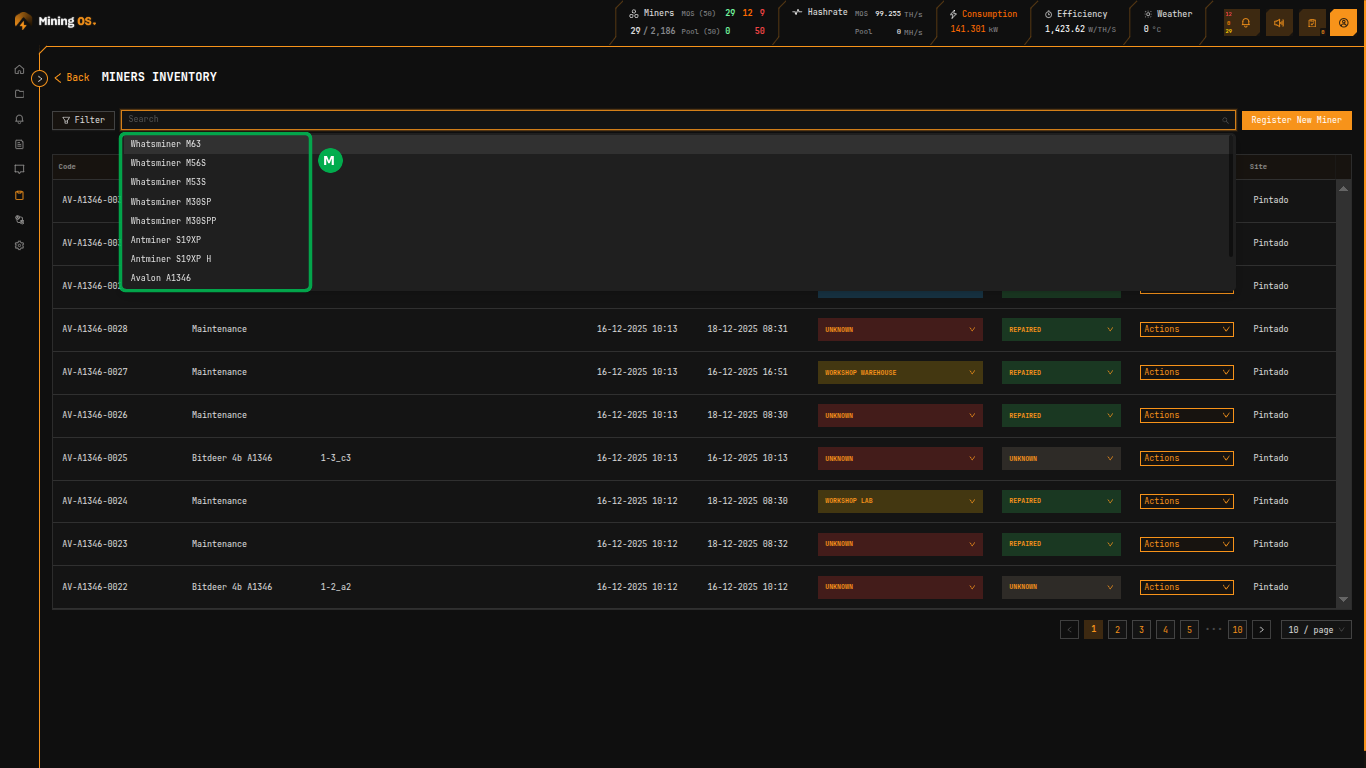 Figure 8: Search field with miner type suggestions
The search dropdown presents supported miner models organized by manufacturer. Selecting a model filters the table to show only miners of that type. Available models include:
| Manufacturer | Models | Documentation |
|---|---|---|
| MicroBT | Whatsminer M63, M56S, M53S, M30SP, M30SPP | Supported Devices — Whatsminer |
| Bitmain | Antminer S19XP, S19XP H | Supported Devices — Antminer |
| Canaan | Avalon A1346 | Supported Devices — Avalon |
For complete device specifications, see Supported Devices.
The Register New Miner button in the top-right corner opens the miner registration dialog for adding new units to inventory. For registration via the container layout interface, see O&M: Adding & Updating Miners.
Inventory Table
The main content area displays miners in a paginated table format with sortable columns.
| Column | Description | Related Documentation |
|---|---|---|
| Code | Unique miner identifier following the pattern [PREFIX]-[MODEL]-[SEQUENCE] | Code Naming Convention |
| Container | Physical container assignment when deployed (shows "Maintenance" for non-deployed units) | Containers |
| POS | Slot position within container (e.g., 1-3_c3) | Explorer — Position Tags |
| SN | Serial number from manufacturer | — |
| MAC | Network MAC address | — |
| Created | Timestamp when miner was added to inventory | — |
| Updated | Timestamp of last status or location change | Historical Movements |
| Location | Current physical location (editable dropdown) | Location Selector |
| Status | Current operational status (editable dropdown) | Status Selector |
| Actions | Context menu for miner operations | Actions Menu |
| Site | Assigned site name | — |
The Created column header includes a sort indicator, allowing chronological or reverse-chronological ordering. Clicking column headers toggles sort direction.
Location Selector
Each row features an inline Location dropdown enabling quick reassignment without opening a detail view. The dropdown is color-coded in orange to indicate editable state.
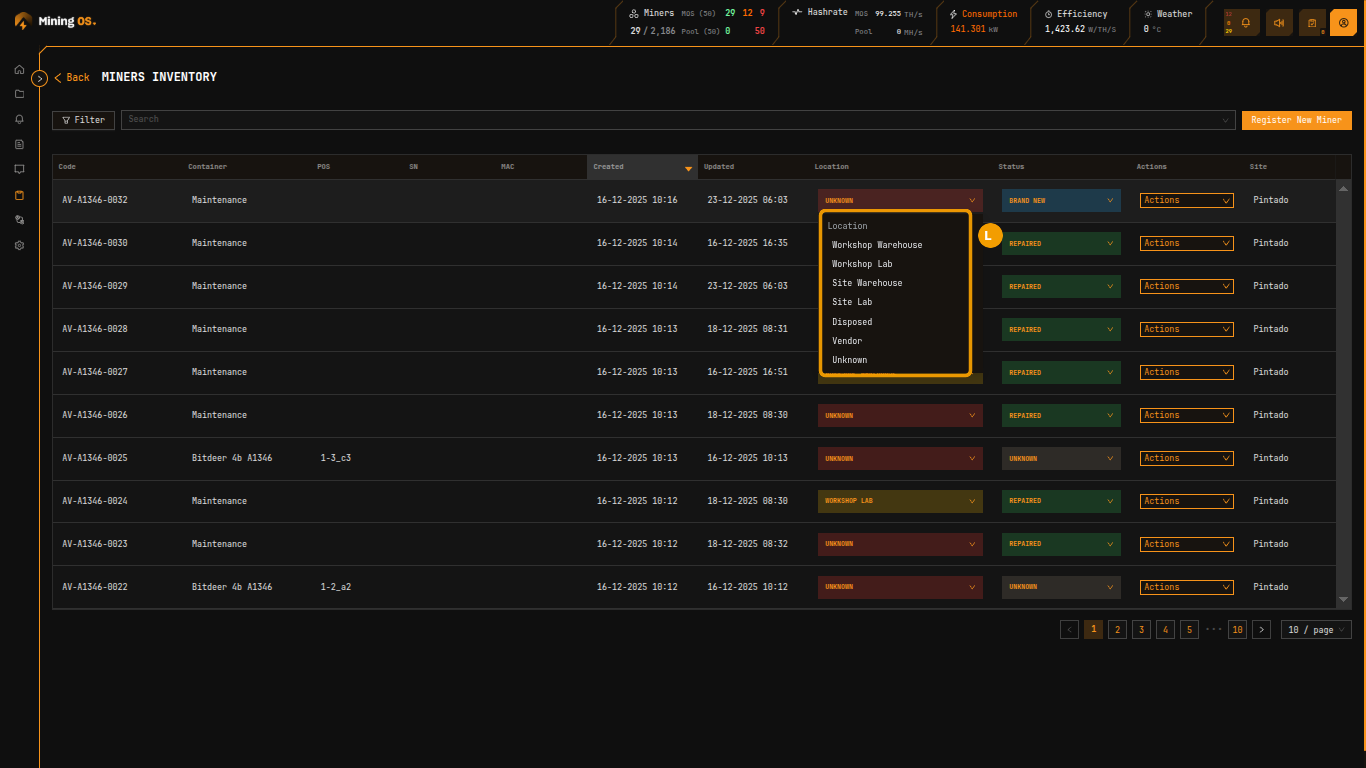 Figure 9: Location dropdown showing available assignment options
| Location | Purpose | Typical Status |
|---|---|---|
| Workshop Warehouse | Storage within repair facility | Brand New, Repaired |
| Workshop Lab | Active repair or diagnostic bench | Faulty, On Hold |
| Site Warehouse | On-site storage awaiting deployment | Brand New, Repaired |
| Site Lab | On-site testing and burn-in area | Repaired, On Hold |
| Disposed | Permanently removed from service | Scrapped |
| Vendor | Sent for external repair or RMA | Faulty |
| Unknown | Location not yet confirmed | Any |
For moving miners between containers, see Change Miner's Position.
For location status breakdown, see Current Site Overview — Miner Locations.
Status Selector
The Status dropdown allows rapid status updates directly from the table view. Status values are color-coded: green for operational states (Brand New, Repaired), orange for attention-required states, and neutral for transitional states.
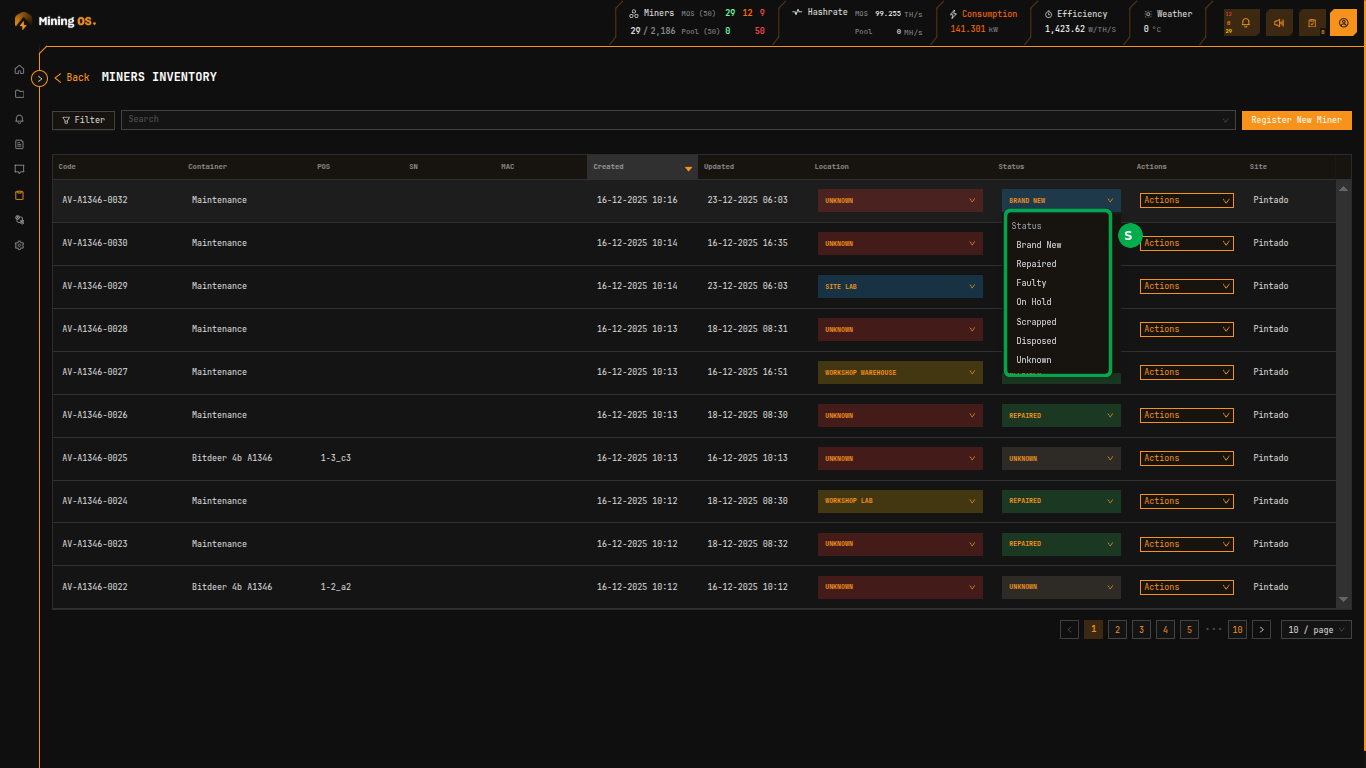 Figure 10: Status dropdown showing lifecycle states
| Status | Description | Next Typical State |
|---|---|---|
| Brand New | Factory-sealed, never deployed | Repaired (after testing) |
| Repaired | Returned to operational condition after maintenance | [Deployed] |
| Faulty | Identified as non-functional, awaiting diagnosis | Repaired or Scrapped |
| On Hold | Temporarily removed from rotation | Repaired or Faulty |
| Scrapped | Deemed beyond economical repair | Disposed |
| Disposed | Permanently removed from inventory | — |
| Unknown | Status not yet determined | Any |
For miner operational statuses (mining, offline, error), see the Explorer.
For status breakdown visualization, see Current Site Overview — Miner Statuses.
Actions Menu
The Actions dropdown provides contextual operations for each miner. The button displays in orange to indicate available actions.
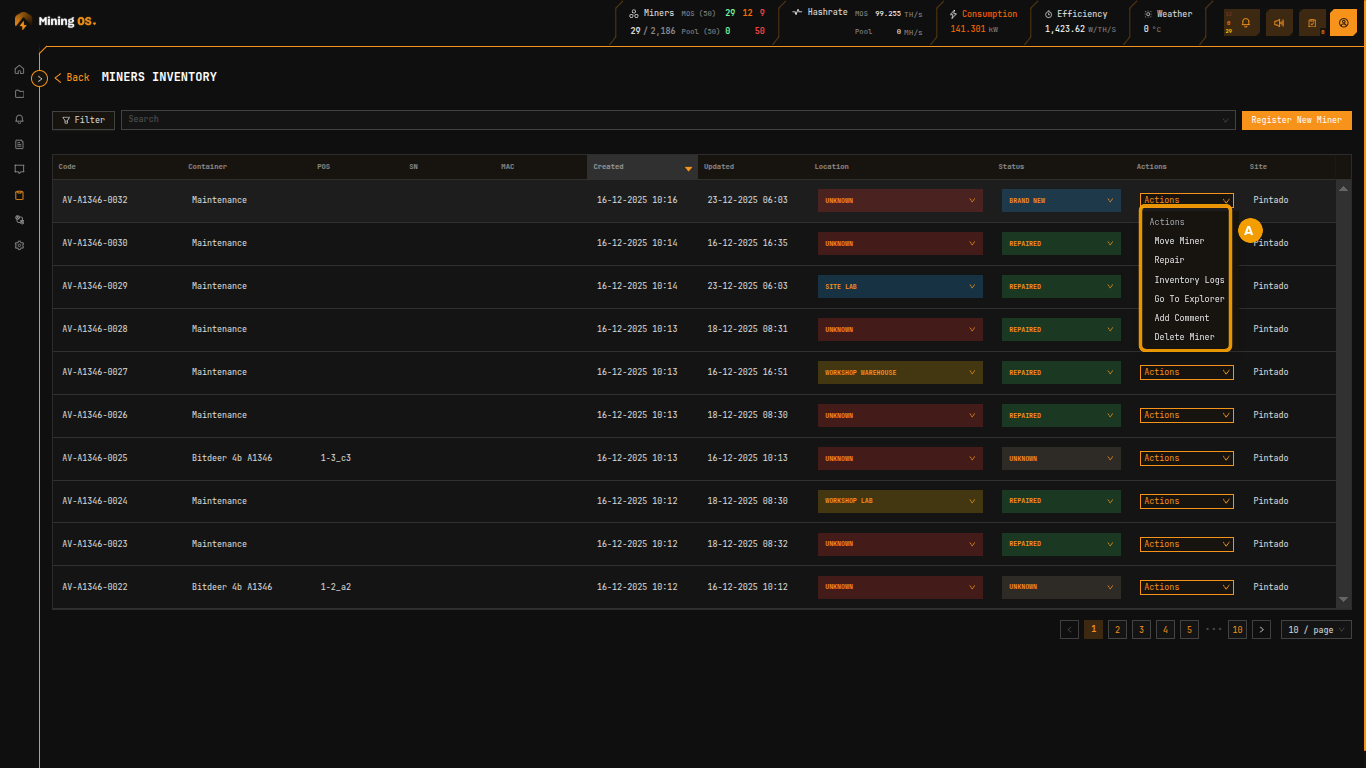 Figure 11: Actions menu showing available operations
| Action | Function | Related Documentation |
|---|---|---|
| Move Miner | Reassign to different container position | O&M — Change Position |
| Repair | Initiate repair workflow and log entry | Repair History |
| Inventory Logs | View complete history of status and location changes | Historical Device Movements |
| Go To Explorer | Open detailed device view | Explorer |
| Add Comment | Attach notes or observations to miner record | Comments |
| Delete Miner | Remove miner from inventory (requires confirmation) | O&M — Remove Miner |
Register New Miner
The Register New Miner button opens a modal dialog for adding new mining units to inventory.
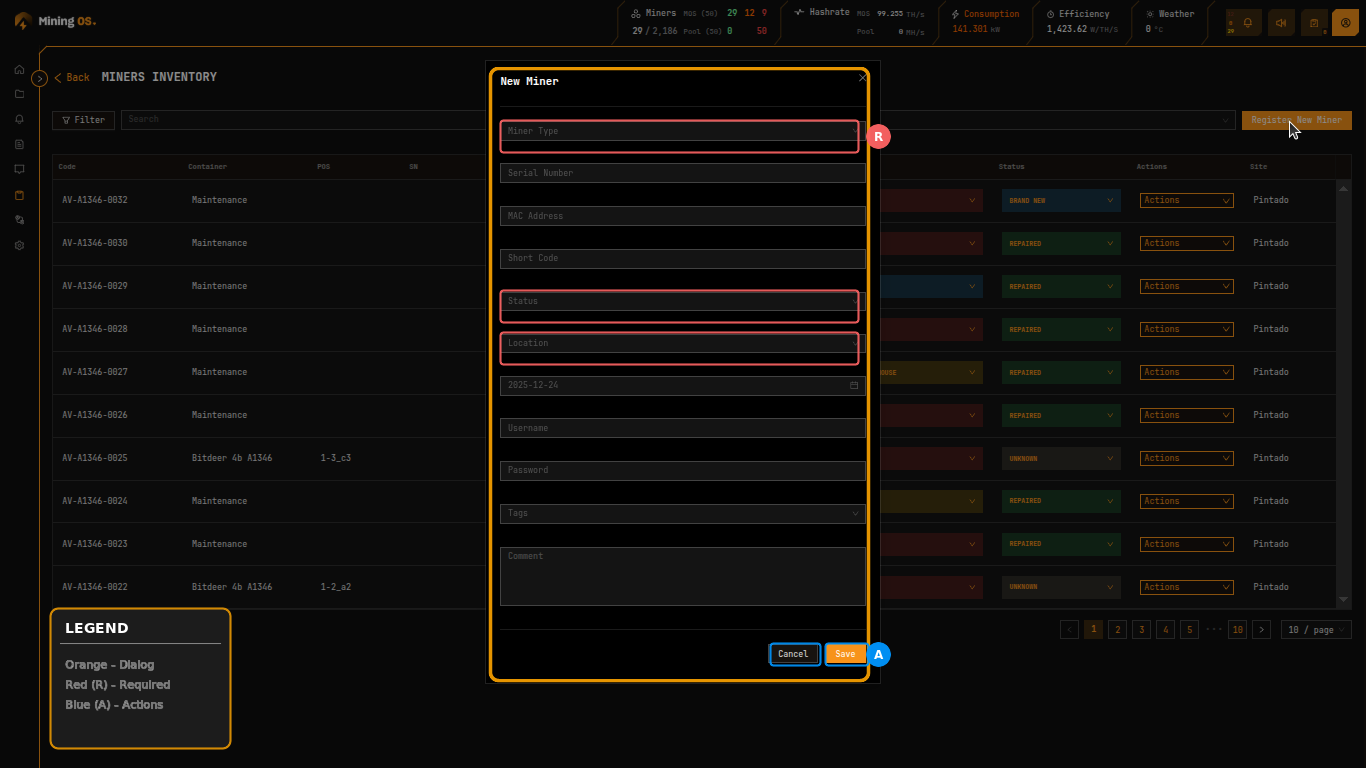 Figure 12: New Miner registration form
The registration form collects essential identification and configuration data.
| Field | Description | Required |
|---|---|---|
| Miner Type | Hardware model from supported list | Yes |
| Serial Number | Manufacturer serial number | Yes |
| MAC Address | Network interface hardware address | No |
| Short Code | Abbreviated identifier for quick reference. See Miner Short Codes | No |
| Status | Initial lifecycle status | Yes |
| Location | Initial physical location | Yes |
| Date | Registration or acquisition date | No |
| Username | Device login username (for remote management) | No |
| Password | Device login password (for remote management) | No |
| Tags | Classification labels for filtering. See Explorer tag syntax | No |
| Comment | Free-form notes about the unit | No |
The Cancel button dismisses the dialog without saving. The Save button validates required fields and creates the inventory record.
For registering miners directly into maintenance mode, see Register a Miner Directly in Maintenance Mode.
Code Naming Convention
Miner codes follow a structured format encoding manufacturer, model, and sequence information. These codes are used consistently across MiningOS for device identification.
| Prefix | Manufacturer | Example Models | Official Support |
|---|---|---|---|
| AV- | Canaan | Avalon A1346 | Canaan Shop |
| AM- | Bitmain | Antminer S19XP, S19XP H | Bitmain Support |
| WM- | MicroBT | Whatsminer M63, M56S, M53S, M30SP | WhatsMiner Shop |
The sequence number provides unique identification within the model category, typically zero-padded to four digits (e.g., AV-A1346-0032).
For more details on miner short codes and physical labeling, see Miner Short Codes.