
Explorer
The Explorer is MiningOS's central device search and management interface. It provides powerful filtering, sorting, and bulk operations for all device types in your mining operation.
For an overview of device types and the worker hierarchy, see Architecture — Workers.
Search Bar
The Explorer search bar allows you to filter by Container, Miner, Pool, and LV Cabinet categories, and also by any of the tags available in MiningOS. These filter tags can be accumulated (e.g., miner model "Antminers S19XP" + Status "mining" + "Has" alerts).

In addition, the Search bar can refine the filtering by specific miner positions, miner attributes (ID, MAC, SN), or even site (if user has permissions for multiple sites).
For detailed information about supported miner models and manufacturers, see the Supported Devices reference.
Search Bar Tag Prefix Types
Position Tags
Local position of item (if applicable): pos-...
Examples: pos-front-1, p-2-1_2
Attribute Tags
Attributes (Short code, ID, MAC, SN): code-..., id-..., ip-..., mac-..., sn-...
Examples:
| Prefix | Example | Description |
|---|---|---|
code- | code-AM-S19XP-0037 | Miner short code |
id- | id-1231231-123123-123123 | MiningOS device ID |
ip- | ip-127.0.0.1 | IP address |
mac- | mac-00:33:22:33:44:55 | MAC address |
sn- | sn-HTM38S142 | Serial number |
Container and Site Tags
For things that further have more things in them (Container, Site):
| Tag Type | Example | Description |
|---|---|---|
| Site | site-atlantis | Filter by site name |
| Container | container-bitdeer-3b | Filter by container |
Any other prefix is not recognized and is treated as an additional tag.
Search Examples
Container Bitdeer 3B in Atlantis:
- Typed tags:
t-container,container-bitdeer-3b,site-atlantis - Additional tags: bitdeer, …
For Bitdeer container operations, see Container Example: Bitdeer. For Bitdeer container specifications, see Supported Devices — Bitdeer Containers.
Whatsminer M56s in PDU 2-3 and socket 22 of Bitdeer 3B of Atlantis:
- Typed tags:
t-miner,pos-2-3_22,container-bitdeer-3b,site-atlantis,id-987654321-456789123-321654987 - Additional tags: wm, m56s, whatsminer, …
For Whatsminer specifications, visit Supported Devices — MicroBT Whatsminer or MicroBT Official.
Temperature sensor in front of Microbt 7 of Shangri-La:
- Typed tags:
t-sensor-temp,pos-front-3,container-microbt-7,site-shangri-la
For sensor specifications, see Supported Devices — Sensors.
Transformer 8 of Shangri-La:
- Typed tags:
t-transformer,pos-t8,site-shangri-la
Power meter 6 of El Dorado:
- Typed tags:
t-powermeter,pos-pm6,site-eldorado
For power meter specifications, see Supported Devices — Power Meters.
Power meter 5 in container Bitdeer 9c of Atlantis:
- Typed tags:
t-powermeter,pos-pm5,container-bitdeer-9c,site-atlantis
Explorer Table
The Explorer table provides the filter or search results, with the option to sort the results.
Clicking on a container takes the user to the related container page. For container-specific documentation, see:
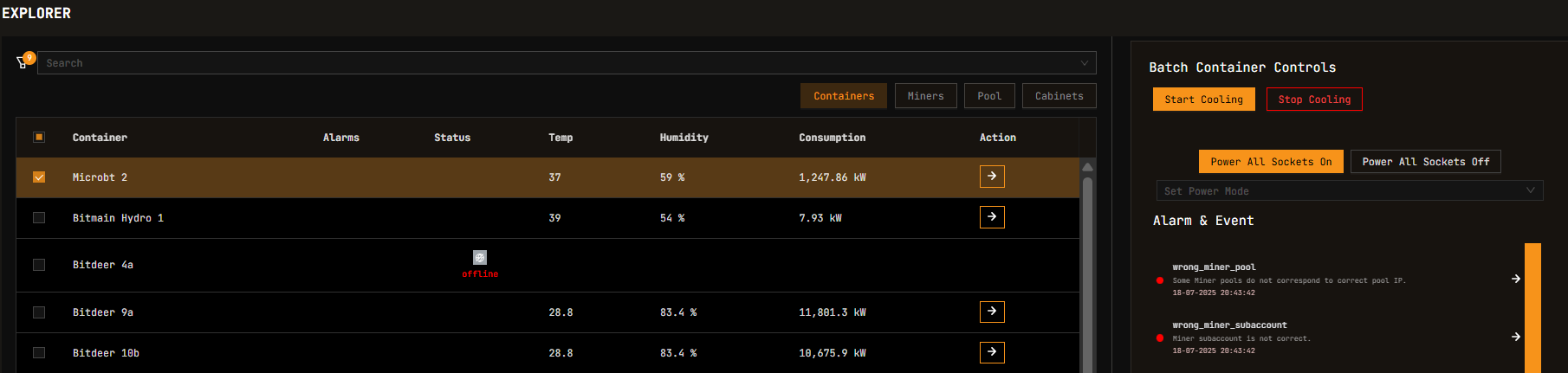
Temperature and Humidity are the values provided by the container (not the miners) and should match the values in the Container's Home page > Temperature & Humidity box > "Container temp" and "Humidity". For visual temperature monitoring, see Heatmaps.
When miners are selected, their values are shown in the columns on the right.
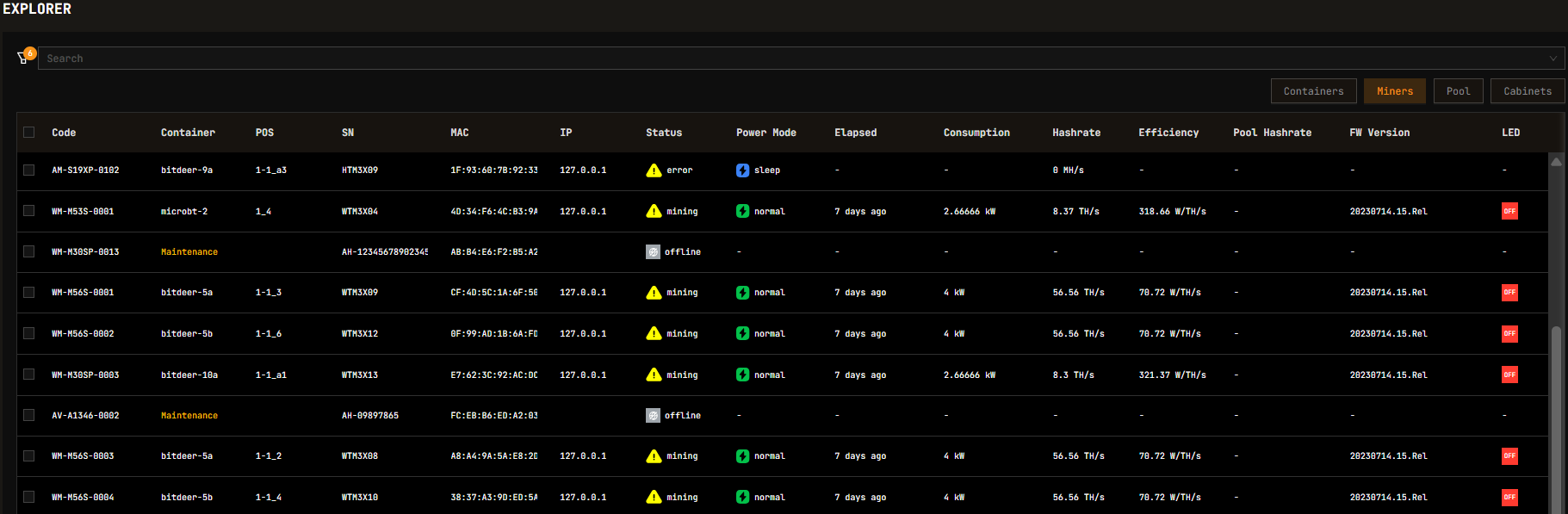
Miner Information Fields
| Field | Icon | Description |
|---|---|---|
| Short Code | 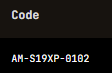 | Miner short code for easy identification. Format: vendor-model-number. See Miner Short Codes below. |
| Model & Position | 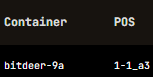 | Miner model, container name, and position (e.g., 1-1_7) |
| Hashrate & Efficiency | 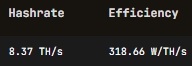 | Latest available hashrate and efficiency reading |
| Temperature |  | Maximum temperature since miner powered on. See Heatmaps for thermal visualization. |
| IP Address |  | Network IP address |
| Firmware | 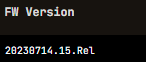 | Firmware version. See Backend Operations for firmware updates. |
| Mining Status | 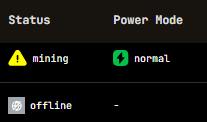 | On/Off and Power mode (High, Normal, Low, Sleep) |
| Power |  | Current power consumption (W) |
| Elapsed |  | Uptime since last powered on |
| Additional Info |  | Additional miner information |
Single vs Multiple Miner Selection
| Single Miner Selection | Multiple Miner Selection |
|---|---|
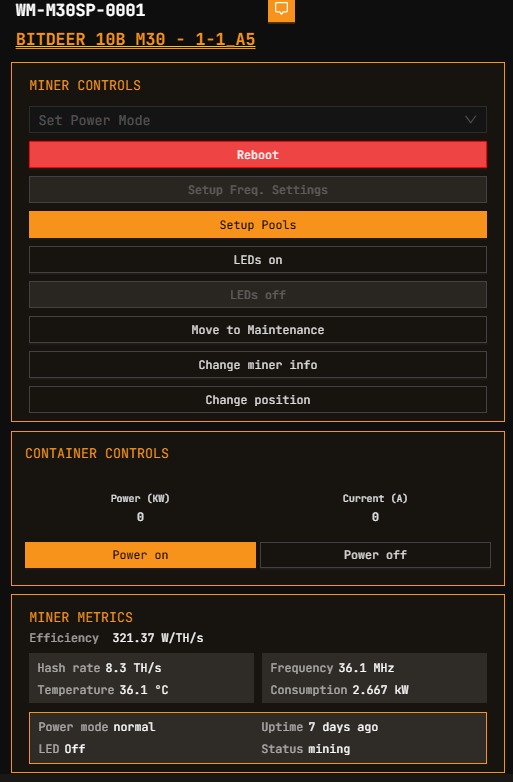 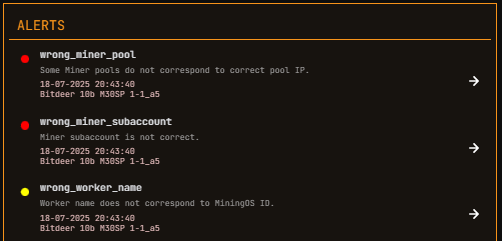 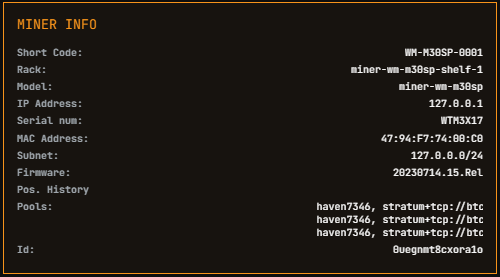 | 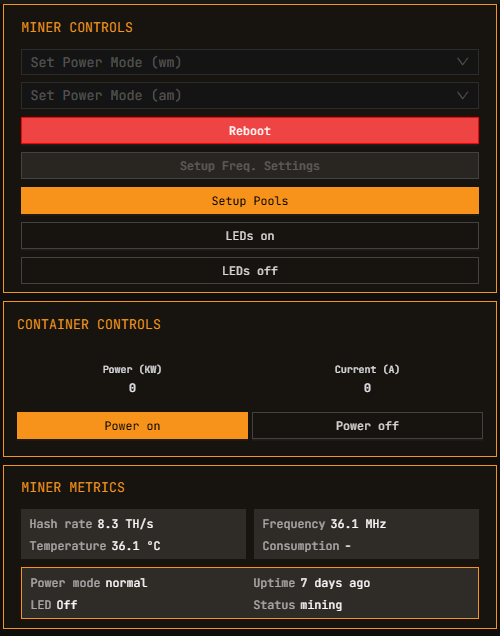 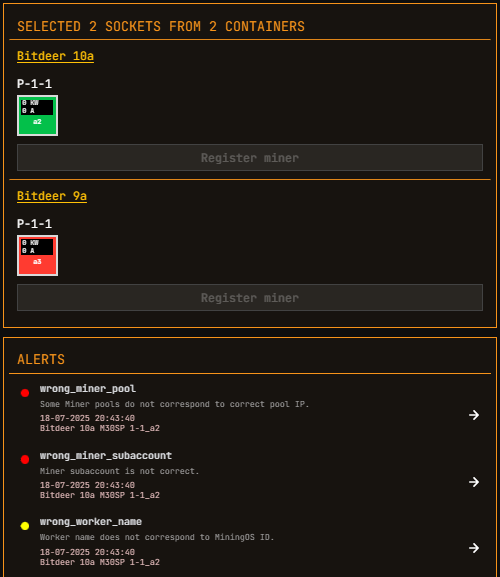 |
Container controls will be hidden if any one of the miners selected does not support the operation. Miner models can have different power mode structures. Therefore, when selecting miners from different models, MiningOS shows a Set Power Mode dropdown per miner model.
Power Mode Support Table
Not all miners support all types of Power Modes. For detailed specifications of each model, see Supported Devices:
* Whatsminer M30 always starts with High (not Normal) mode.
Whatsminer Power Mode Guidelines
For Whatsminers, when changing Power mode the miners restart, causing a sudden drop in consumption and hashrate. A Power mode change also takes a few minutes (usually 3 to 5 depending on factors such as wear and tear) to reach the expected consumption and hash rate for the new mode.
It is not recommended to change power mode for small consumption adjustments when miners are running. Instead, use Normal mode with "Power % adjustment" from vendor tools that support this feature (Whatsminers and Avalons).
High Power Mode: Use only when you need to sustain very high consumption for extended periods (e.g., compensating for a down container). High power mode consumes more energy but does not increase efficiency proportionally.
Low Power Mode: Use exceptionally or never. Low power mode has only been useful in rare cases with very high ambient temperatures (summer) to avoid oil overheating, which can trigger miner errors and automatically send them to Sleep mode.
For backend power configuration options, see Backend Operations.
On Power Consumption: Containers vs Miners
Some devices support power readings whereas others do not. Some containers and some miners (such as Antminers) do not have power readings. This can cause:
- Some containers showing power usage despite their associated miners showing none
- Some miners showing power usage despite their associated container showing none
For real-time power monitoring across your site, see the Widgets Page and Dashboard. For power meter worker setup, see Installation Guide.
Miner Short Codes
MiningOS assigns unique short codes to each miner case with the format: vendor-model-number
| Prefix | Manufacturer | Example Codes |
|---|---|---|
| AM- | Bitmain Antminer | AM-S19XP-0037, AM-S19XP_H-0030 |
| AV- | Canaan Avalon | AV-A1346-0044 |
| WM- | MicroBT Whatsminer | WM-M30SP-0131, WM-M53S-0248, WM-M56S-0271 |
For complete model specifications, see Supported Devices.
These codes should be written on the miner's box and case for physical identification.
Why Use Short Codes?
- MAC addresses can change — they are linked to the Control board, not the miner case
- Serial numbers and MiningOS IDs may be difficult to read physically
- Short codes are easy to read and provide quick identification
In the Explorer search bar, use the prefix code- to search by short code (e.g., code-AM-S19XP-0037).
Short Code Assignment
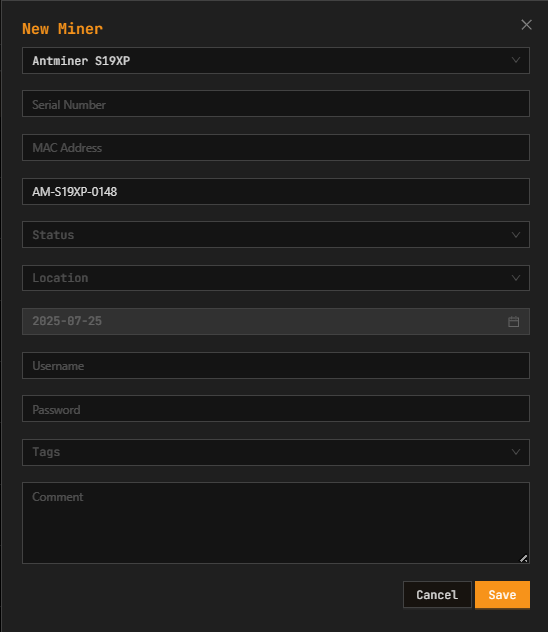
When registering a miner, after selecting the miner model, MiningOS automatically proposes a short code. Users can edit this short code, but it must be unique.
Once assigned, a miner's short code cannot be changed unless the miner is Removed from MiningOS and Registered again. Data attached to the miner (such as comments) will be lost.
For miner registration procedures, see O&M: Adding & Updating Miners.