

Container Example 1: Bitdeer
Operate and manage Bitdeer Minerbase containers within MiningOS, including D40 series configurations.
This guide covers the operation and management of Bitdeer Minerbase containers within MiningOS. Bitdeer containers support multiple miner configurations including D40 series for Avalon A1346, Whatsminer M30/M56, and Antminer S19XP models.
For container specifications and capacity details, see the Introduction and Supported Devices — Bitdeer Containers.
Home
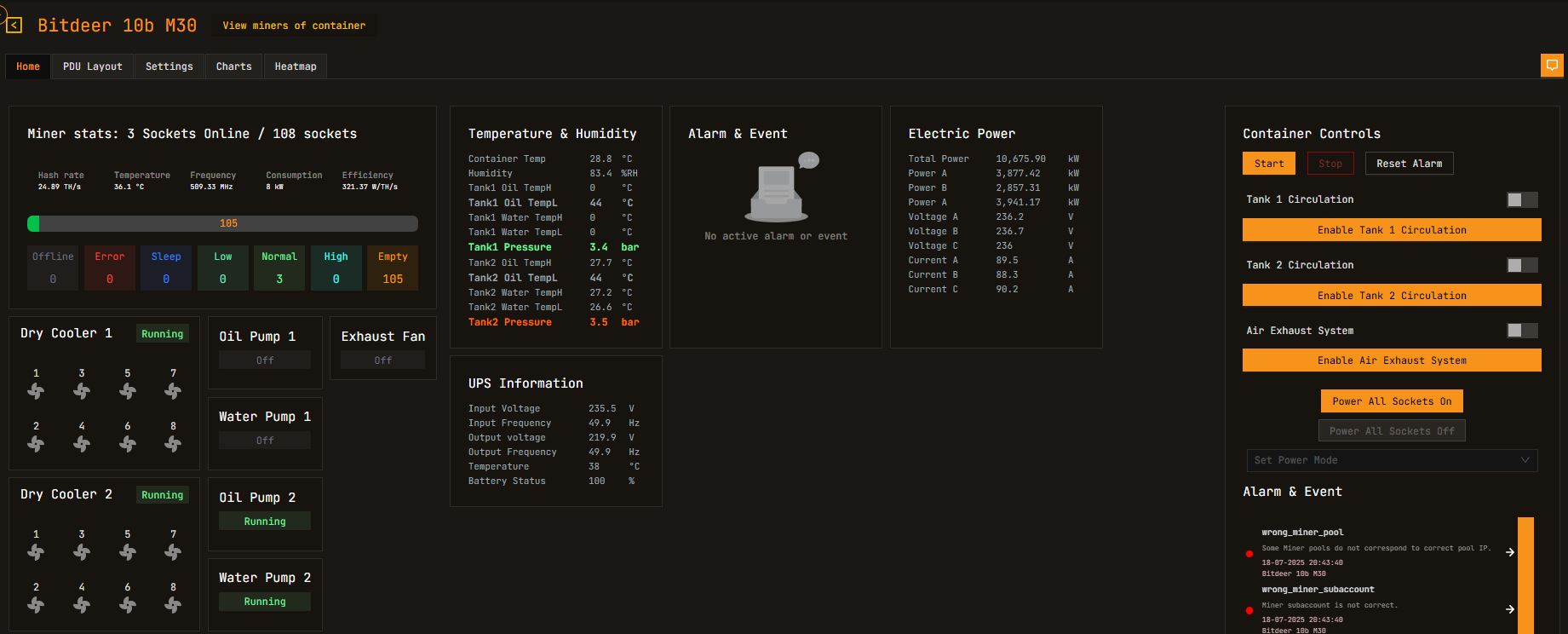
The Home tab provides real-time monitoring and control of container systems. For temperature-based visualization of this data, see Heatmaps.
Container Controls
| Control | Description |
|---|---|
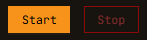 | Turn on/off. The stop button just stops operation, it does not turn off the container. |
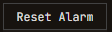 | Reset (temperature, etc.) container alarm status from sounding to silent. The container itself has a Buzzer on/off button (which can not be controlled remotely) only to reduce the noise in the field when the fault cannot be eliminated in a short time. See Alerts Manual for alarm types. |
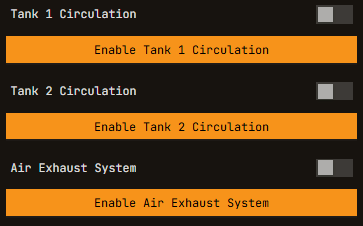 | Turn on/off Tanks circulation. Turn on/off Air Exhaust system. |
 | Power On/Off all sockets allow to provide / block energy from the containers. |
 | Set Power Mode dropdown allows changing the mode in a batch of all miners in the container. See Power Mode Support Table for model compatibility. |
 | Fan number. Fan color indicates status: Green ON / No color OFF |
 | Dry cooler color indicates status: Green ON / No color OFF (no error color) |
 | Oil pump Water pump and Fan colors indicate status: Green ON / No color OFF / Red ERROR. Red status triggers alerts visible in Alerts Manual. |
PDU Layout
The PDU Layout displays the physical arrangement of miners within the container. This view is essential for identifying miner positions during maintenance operations. For miner registration and position changes, see O&M: Adding & Updating Miners.
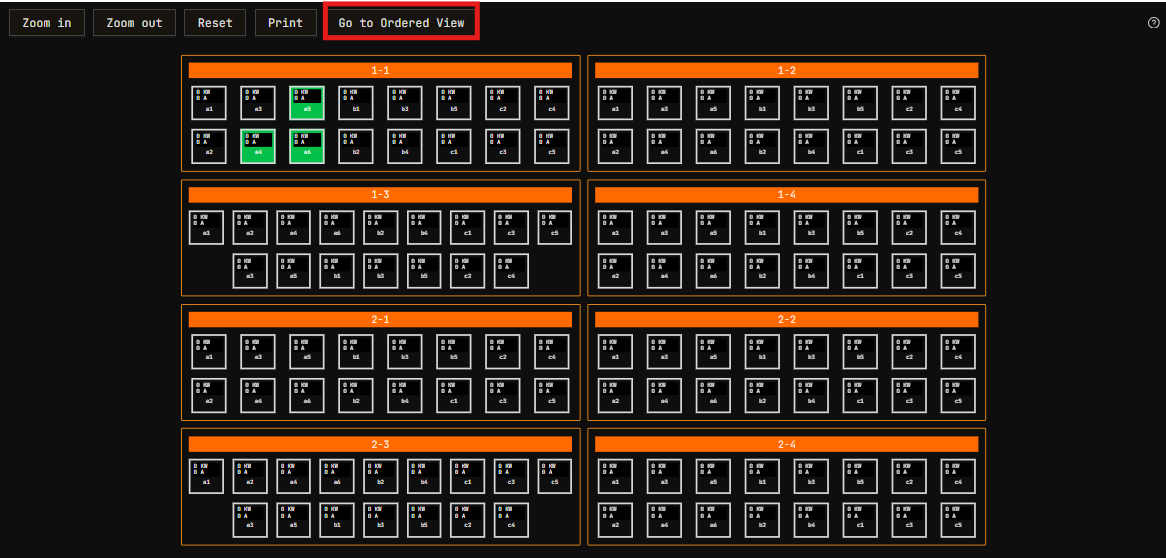
Container View
PDU Layout as physically positioned in the container.
Ordered View
PDU Layout easier to read from a monitor.
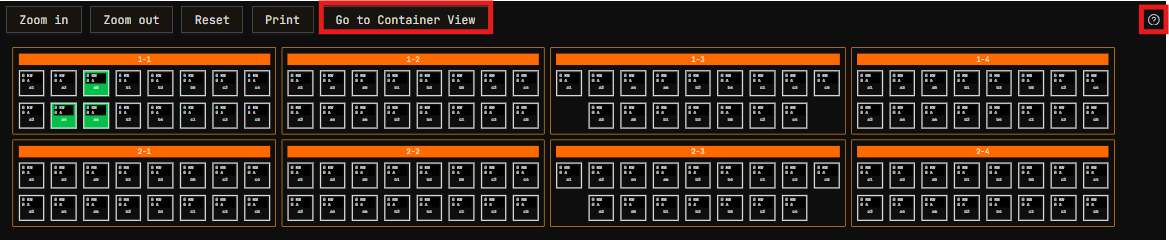
Miners are distributed according to PDU, not network switch.

PDU Layout Commands
| Command | Action |
|---|---|
| Drag select | Select multiple miners |
| Click on Rack bar | Select all miners therein (Ctrl+Click to deselect) |
| Shift+Click | Select multiple individual miners |
| Ctrl+Scroll Up/Down | Zoom In/Out |
| Scroll Up/Down | Move Up/Down PDU Layout view |
PDU Layout Elements
| Element | Description |
|---|---|
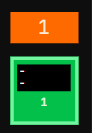 | GUI represents the miner PDUs as organized in the container. The number in orange indicates the rack number. The number inside the socket indicates the position inside the rack. Therefore position 1-1 indicates rack 1, socket 1. |
 | Miner "selected" and showing information on the column on the right. Power (KW) and Current (A) are displayed for each miner. |
  | Miner BORDERED Grey: Socket is disabled & Miner not connected. Miner FILLED Grey: Socket is enabled & Miner not connected. |
 | Miners Color coding:  . For temperature-based color visualization, see Heatmaps. . For temperature-based color visualization, see Heatmaps. |
 | Generates PDF of the graphic representation of the container's racks. |
 | Exports the miners data for this container in csv and json formats. |
Miner Selection and Controls
For detailed information on miner selection behavior across the entire system, see Explorer: Single vs Multiple Miner Selection.
Information & Commands Sidebar
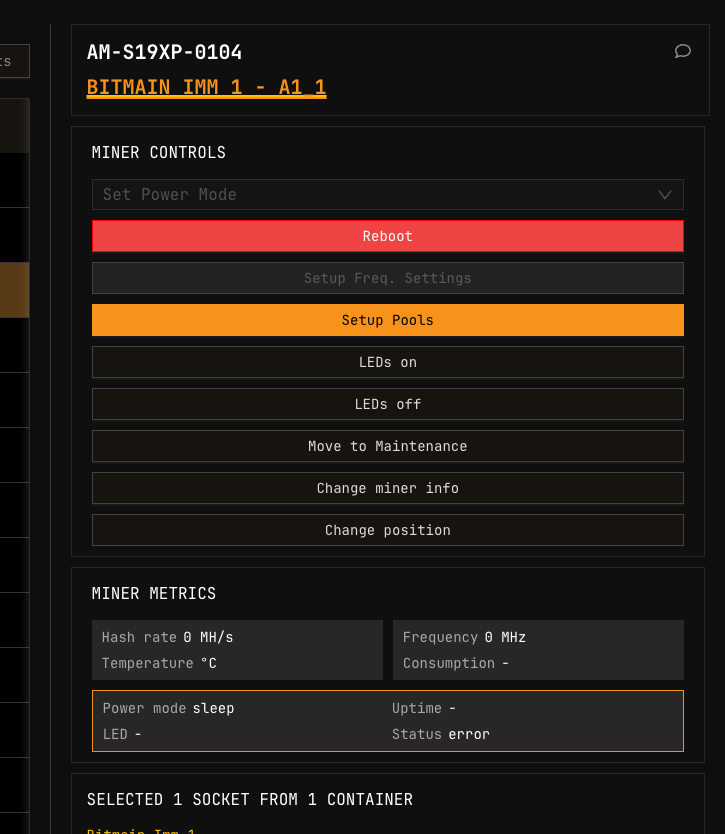
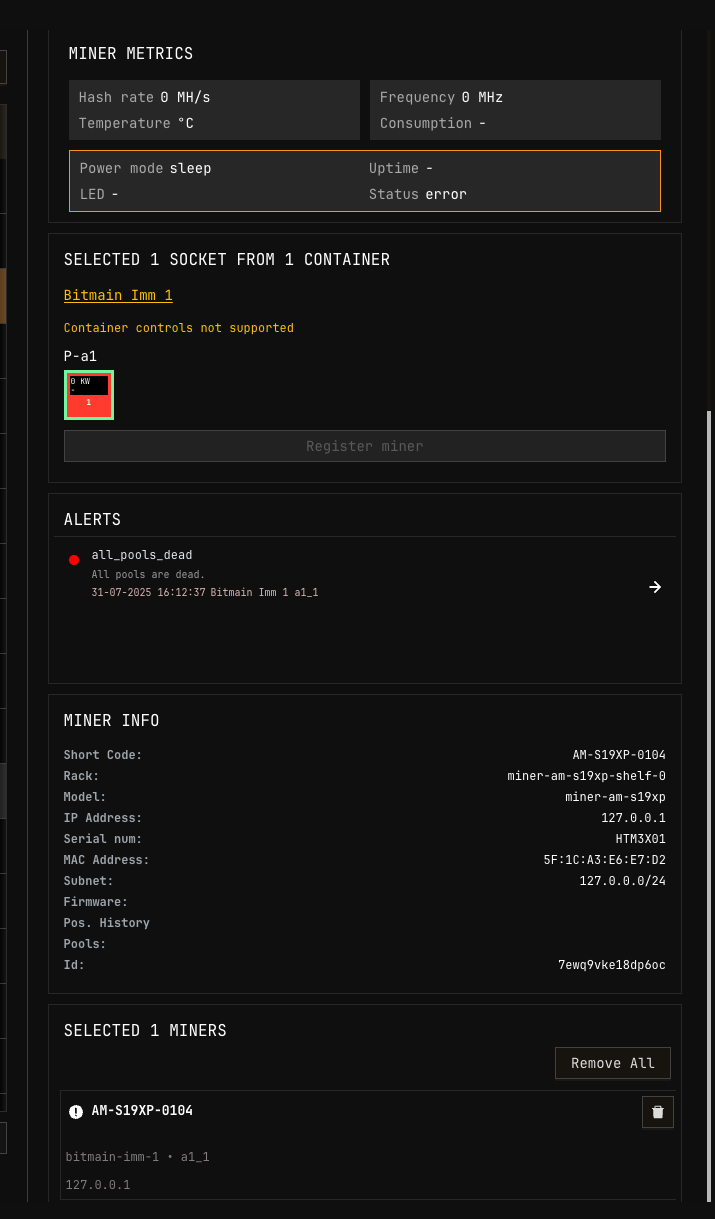
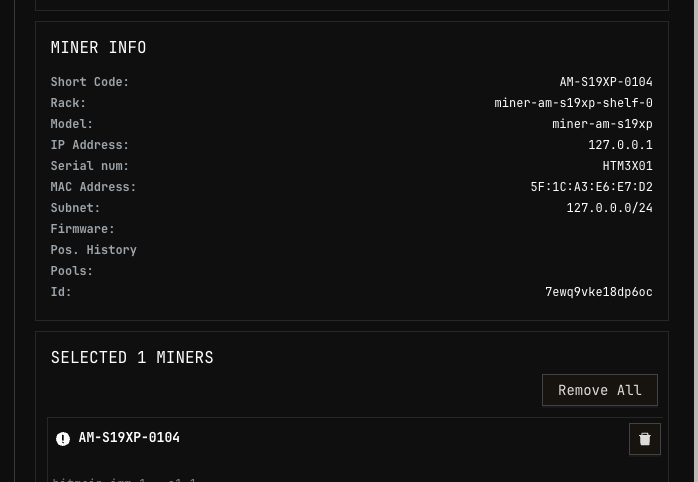
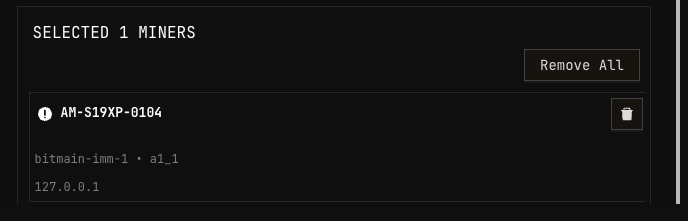
Container controls will be hidden if any one of the miners selected does not support the operation. See Power Mode Support Table for model-specific capabilities.
Pool Configuration
SetupPools automatically sets the MiningOS ID as the miner's IP. SetupPools will start the mining immediately, so please only do this when the cooling systems are operational.
MiningOS sets up 3 pools for the miner: a primary pool and 2 failover pools. The pool accounts can not be configured from the UI, and can belong to different pool providers. For comprehensive pool management, see Pool Manager Module.
Currently supported pools:
For pool worker installation and configuration, see Installation Guide — Ocean Mining Pool and Installation Guide — F2Pool.
If a miner is mining to no pool or to the wrong pool, it will trigger an alert visible when selecting the miner, in the Active alerts widgets and in the Alerts Overview page.
Important: Setup pools must always be done from MiningOS (not from the vendor tools), as otherwise the pool worker will not be detectable in MiningOS by ID (because miners will not have their ID set up in pool username) and alerts will be triggered. Another consequence would be that such miners will not be accounted for in the Miners online and Hashrate charts of the Containers KPI page.
Supported Bitdeer Container Models
MiningOS supports the following Bitdeer container configurations. For complete specifications, see Supported Devices — Bitdeer Containers:
| Model | Compatible Miners | Reference |
|---|---|---|
| D40 (A1346) | Canaan Avalon A1346 | Bitdeer Minerbase |
| D40 (M30) | MicroBT Whatsminer M30 series | Bitdeer Minerbase |
| D40 (M56) | MicroBT Whatsminer M56 series | Bitdeer Minerbase |
| D40 (S19XP) | Bitmain Antminer S19 XP | Bitdeer Minerbase |
For miner specifications within these containers, see:
- Supported Devices — Bitmain Antminer
- Supported Devices — MicroBT Whatsminer
- Supported Devices — Canaan Avalon
Related Documentation
Operator Manual
- Introduction — Container suppliers overview and capacities
- Container Example: Antspace Hydro — Bitmain Antspace container operations
- Explorer — Device search, filtering, and power mode reference
- Heatmaps — Temperature and hashrate visualization
- O&M: Adding & Updating Miners — Miner registration and maintenance
- Alerts Manual — Alert types and container-specific visual alerts
- Pool Manager Module — Pool configuration and assignment
- Widgets Page — Container overview widgets
Architecture & Technical Reference
- Architecture Guide — System architecture and Bitdeer worker details
- Supported Devices — Complete hardware specifications
- Installation Guide — Bitdeer container worker setup